Tableau | Data visualisation
 Axis animation in Tableau Desktop and Web Authoring : New in Tableau 2021.3
Axis animation in Tableau 2021.3 is subtle, but it stops people mistaking a changed axis for changed data.
- Tableau 2021.3 adds the ability to animate axes, not just the data points, when filtering or changing a view
- Animations are on by default in newer versions, but if disabled you can toggle them on under Format and set the speed preset to slow or fast
- Setting animation speed to slow makes the axis change more visible for demonstration purposes
- Without axis animation, axes flip instantly and your eye stays on the data points, so you can miss that the underlying context has changed
- Enabling axis animation is good data viz practice because it communicates change through both the chart and the axis
Tableau 2021.3 can animate the axes themselves, not just the marks, when a filter or view change causes the scale to shift, making it obvious the context has changed rather than the data itself.
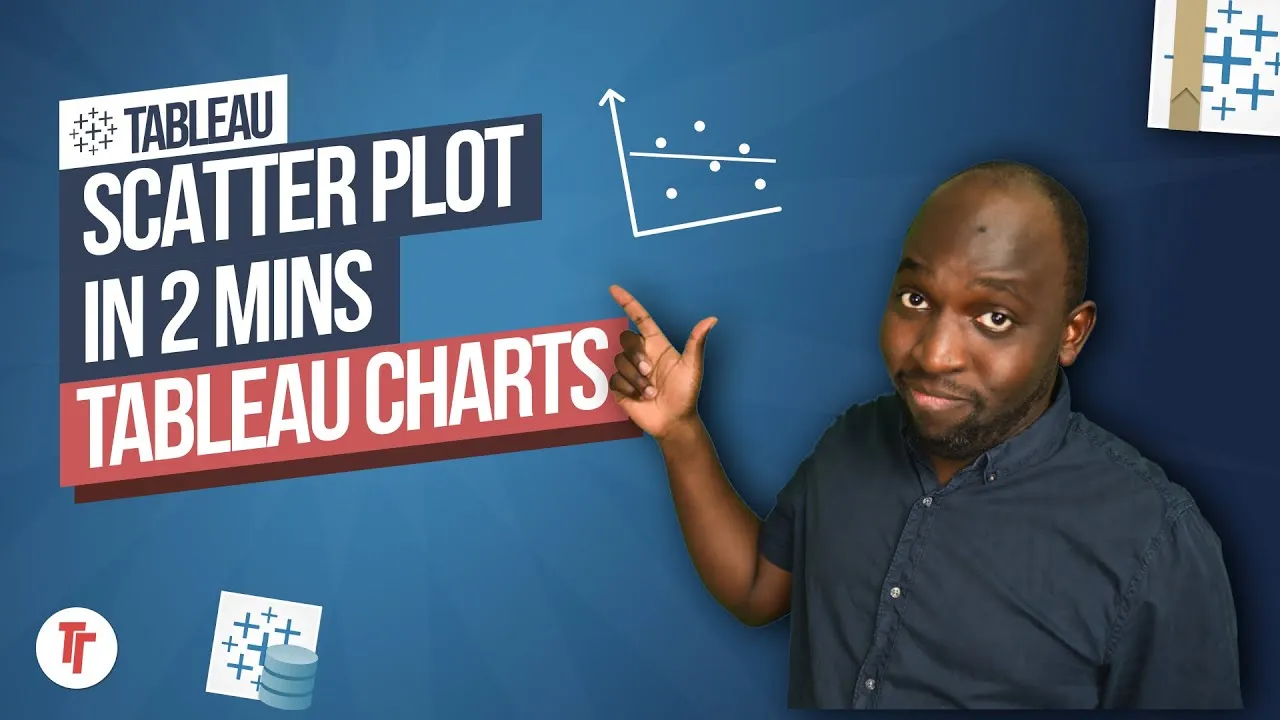
Tim builds a quick scatterplot from Superstore data with sales on rows, profit on columns, category on colour and product name on detail, then adds a category filter to demonstrate the effect.
- Build a simple scatterplot 0:20
Put a measure on rows and another on columns, then add a dimension to colour and a more granular one to detail. This gives you a chart with enough marks and enough axis range to make an animation visible.
- Check animations are switched on 1:21
In newer Tableau versions animations are on by default, but in older ones you need to enable them yourself under Format. If you don't see any animation at all, this is the first thing to check.
- Set the animation speed 1:40
Under the animation options you can set a preset speed - slow or fast. Setting it to slow makes the axis change easier to see, which is useful when you're demonstrating or checking the effect, though normal use might warrant a faster setting.
- Add a filter to trigger the change 1:49
Right-click a dimension and choose Show Filter to quickly get an interactive filter control. Toggling a filter value on and off is what causes the axis range to shift and the animation to play.
- Watch the axis animate, not just the marks 2:00
When you deselect and reselect a filter value, the axis itself animates into its new range rather than jumping straight there. This is the actual new capability in 2021.3, as opposed to just the marks moving.
- Compare with animation switched off 2:42
Turning animation off shows the axis flipping instantly. With no animation your eye stays on the moving data points, so it's easy to miss that the underlying scale has changed and wrongly assume the data itself has shifted.
- If you're on an older Tableau version, axis animation won't appear at all because animations used to be off by default.
- Slow speed is chosen here purely to make the effect visible for demonstration; it's a preset you can change to fast or another setting.
Reach for this whenever a dashboard filter or parameter change can alter axis scales - it stops viewers misreading a rescaled axis as a change in the underlying data.
How this Rollup was made provenance & method
A Rollup is drafted by AI from the video's transcript, then reviewed and edited by Tim. Everything used to produce this one is listed below (the model, the exact prompt, and the source video), so the process is transparent and reproducible.
- Transcription
- On-device: NVIDIA Parakeet v3 for recent videos, OpenAI Whisper large-v3 for earlier ones. The transcript never leaves the machine or gets published.
- Drafting
- Claude Sonnet 5 in the cloud, from that transcript.
- Prompt
- The exact Rollup prompt (v2) , the full system prompt, unedited.
- Mode
- Walkthrough: a timestamped breakdown in video order, for a demo or how-to. Written before modes existed, when every Rollup was a walkthrough.
- Source video
- Watch on YouTube
- Drafted
- 5 July 2026 at 09:38
- Reviewed & edited
- 5 July 2026 at 09:41 · by Tim Ngwena
Model + prompt + video is everything you'd need to recreate a Rollup like this yourself. The one thing we don't share is the transcript.
Rights. The video and its transcript are the property of TN Media Ltd. Unauthorised use or download is prohibited. © TN Media Ltd.