Tableau | Data visualisation | Tool strategy
 In-product Tableau Exchange -New in Tableau 2022.2
I start this video certain you can't get Exchange data sources in-product, and you get to watch me prove myself wrong.
- Accelerators are now available directly in Tableau Desktop via a 'More Accelerators' option, searchable by theme, category, language and connection type.
- Accelerators are essentially templates and starting points, so you edit the data source to swap in your own connection and update the dashboard for your environment.
- Exchange connectors can be installed in-product by clicking install and restarting Desktop, after which they appear in your installed connectors list.
- The in-product Exchange brings extensions, connectors and accelerators together in one place, so you rarely need to visit the Exchange website itself.
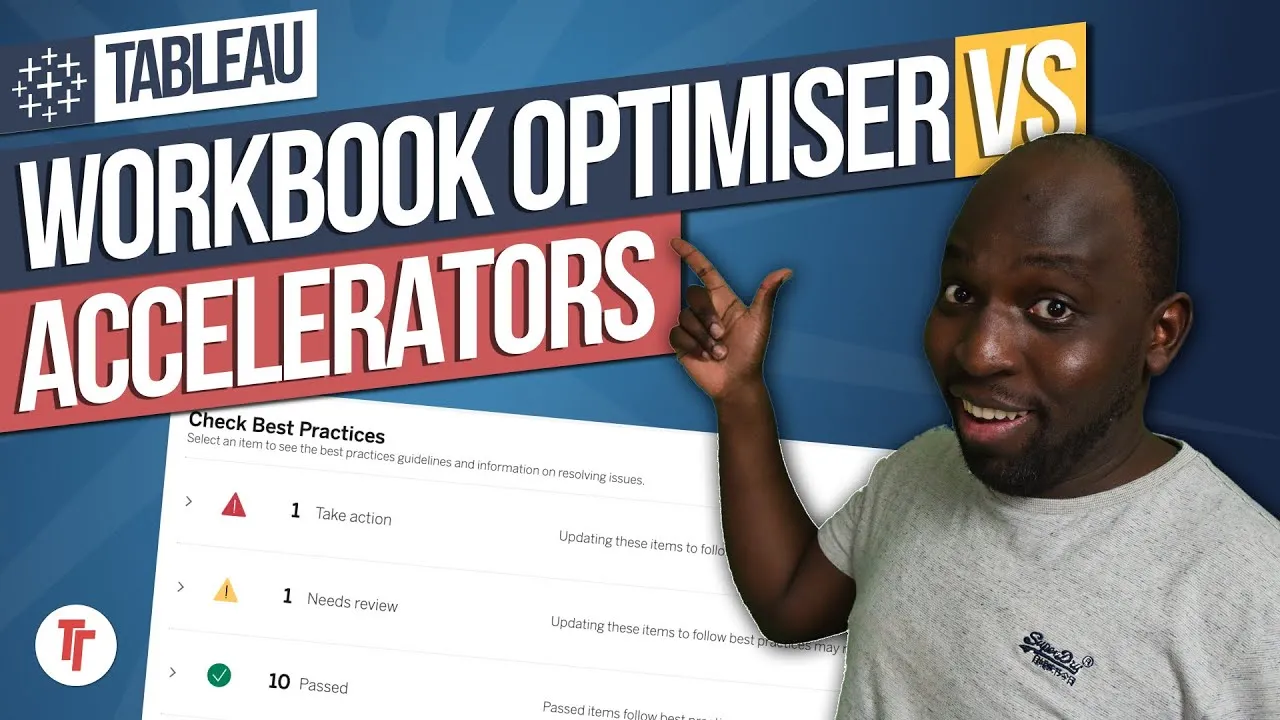
Tableau 2022.2 pulls the Tableau Exchange (accelerators, connectors and extensions) directly into Desktop, so you can browse, install and use exchange content without leaving the product or visiting the website separately.
Recorded while exploring a beta version of Tableau Desktop 2022.2, starting from a blank workbook to see what the in-product Exchange experience offers.
- Accelerators are really just templates 0:00
The 'Accelerators' Tableau ships with Desktop are starting-point dashboards, not automation - think of them as templates you'll still need to rework, despite the misleading name.
- Browse the full Exchange library in-product 0:57
A 'More Accelerators' option opens a searchable pop-up of everything on the Tableau Exchange, filterable by theme, category, language and connection type, so you don't need to hunt on the website first.
- Search can be unreliable 1:21
As a quick tip: if a known accelerator doesn't show up, check that 'all categories' is deselected in the filters - search only worked correctly once that was cleared.
- Opening an accelerator loads the real dashboard 1:42
Selecting an accelerator shows its Exchange page in an embedded browser, and clicking open loads the actual dashboard into Desktop, sometimes in a new window if you already have a workbook open.
- Swap in your own data to reuse a template 2:43
Once an accelerator is open, right-click the data source and edit the connection to point at your own environment - this is the actual point of these templates rather than using them as-is.
- Exchange connectors can be installed natively 3:21
From the connect pane's 'more' list, additional connectors sourced from the Exchange appear; selecting one prompts an install-and-restart, after which it moves into your regular installed connectors list - proving native installation is genuinely possible, contrary to first assumption.
- Restart may not trigger automatically 4:01
Worth knowing: the install didn't restart Desktop on its own in this test, so you may need to close and reopen the application yourself for a newly installed connector to appear.
- Connectors, extensions and accelerators now live together 6:30
Dashboard and workbook extensions can be dragged into the view alongside installed connectors and accelerators, meaning all three Exchange content types are now accessible from inside Desktop without a separate trip to the Exchange site.
- The accelerator search filter defaults in a way that can hide results - clear 'all categories' if a search comes up empty.
- Installing an Exchange connector may not auto-restart Desktop as expected; you might need to restart manually before it appears in your installed list.
- At the time of recording the accelerator library was fairly limited, though expected to grow.
- This was tested on a beta version of Desktop, which caused some preview images/dashboards not to load correctly.
Reach for this when you want a dashboard starting point for a specific data source or use case, or when you need a niche connector from the Exchange without leaving Desktop to install it separately.
How this Rollup was made provenance & method
A Rollup is drafted by AI from the video's transcript, then reviewed and edited by Tim. Everything used to produce this one is listed below (the model, the exact prompt, and the source video), so the process is transparent and reproducible.
- Transcription
- On-device: NVIDIA Parakeet v3 for recent videos, OpenAI Whisper large-v3 for earlier ones. The transcript never leaves the machine or gets published.
- Drafting
- Claude Sonnet 5 in the cloud, from that transcript.
- Prompt
- The exact Rollup prompt (v2) , the full system prompt, unedited.
- Mode
- Walkthrough: a timestamped breakdown in video order, for a demo or how-to. Written before modes existed, when every Rollup was a walkthrough.
- Source video
- Watch on YouTube
- Drafted
- 5 July 2026 at 09:38
- Reviewed & edited
- 5 July 2026 at 09:41 · by Tim Ngwena
Model + prompt + video is everything you'd need to recreate a Rollup like this yourself. The one thing we don't share is the transcript.
Rights. The video and its transcript are the property of TN Media Ltd. Unauthorised use or download is prohibited. © TN Media Ltd.