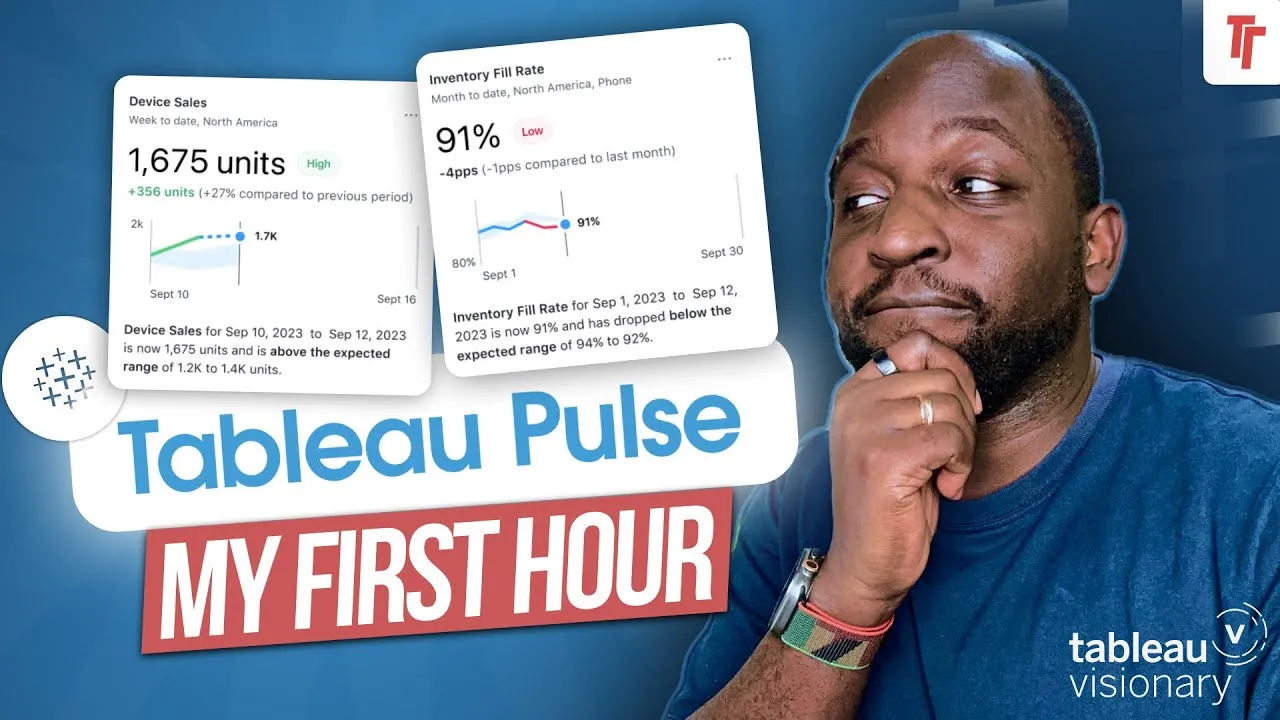
0:00Tableau Pulse is out. 24.1 is also out so I
0:02'm going to start making my way through all
0:04these
0:05videos this week. Today we're going to show
0:07you how to enable Tableau Pulse on Tableau
0:09Cloud and
0:10for those of you wondering Tableau Pulse
0:12will not be coming to Tableau Server. I'll
0:14cover that in
0:14the end of this video. As ever let's get
0:16stuck in. Okay so we're here inside of
0:19Tableau Cloud.
0:20You can see that I've got a brand new
0:22vanilla user admin here that's logged into
0:24Tableau Cloud for
0:25the first time. I'm sort of simulating this
0:27because I think there might be some server
0:29admins,
0:29who are now coming to Tableau Cloud and
0:31doing this for the first time. So I'm going
0:34to sort of
0:34create a similar experience to try and give
0:37some parity to that journey. So to enable
0:40Tableau
0:40Pulse there's actually a couple of steps
0:42that you have to go through. I will say
0:44that Tableau
0:44have some pretty good documentation on this
0:46. That's essentially what I followed but let
0:48me
0:48just walk you through the basic steps here
0:50and then I'll show you where the
0:51documentation is.
0:52It will also be in the comments and the
0:53description below. So let's go ahead and
0:55start
0:56by going to the settings option over here
0:58on the left hand side. If we go ahead and
1:00click on that
1:01we go to this page and this page has had a
1:03lot of settings added to it over time. So
1:06if we scroll
1:07down you'll see there's a couple of options
1:09and the two things you need to bear in mind
1:11here are
1:11actually these specific two items. Now I'm
1:14going to break these down in a separate
1:16video because
1:17I do think they need their own video but in
1:20essence over the last six months Tableau
1:22have
1:22been talking about two core technologies
1:25Tableau Pulse and something they've sort of
1:27rebranded a
1:28couple of times mainly to do with AI. What
1:30they're calling it this time around is
1:32Tableau AI. So
1:33Tableau AI think of this as the underlying
1:36technology that's powering all the AI based
1:38experiences on the Tableau platform. So
1:41Tableau Pulse is one part of that. It's
1:43going to be using
1:44Tableau AI and some of its capabilities.
1:46There'll also be other AI based features
1:48coming out in the
1:49future that will also lean on Tableau AI.
1:52So in order for all of those AI
1:53capabilities to work
1:55Tableau have a separate toggle here to
1:57enable this to happen. So you can see here
2:00that we have
2:01a setting and it's mostly sort of geared
2:02towards Tableau Pulse but you can see here
2:04the specific
2:05setting it's actually asking about it's
2:07enabling Tableau Pulse insight summaries to
2:10use generative
2:10AI to summarize key metric insights using
2:14natural language. And this is a very
2:17specific permission
2:18because what this is actually saying is
2:20that AI is not generating the insights. The
2:22insights are
2:23actually coming out of your raw data. What
2:25is actually happening is that insight is
2:27being fed
2:28to an AI system. I think it's actually Chat
2:31GPT in the background and that system is
2:34taking those
2:35summaries and trying to synthesize that
2:37into a sentence very much like you might go
2:39to ChatGPT,
2:39give it a bunch of sentences and ask it to
2:41summarize that into a brief and more
2:43succinct
2:44sentence that still reflects the truth and
2:46is still sort of well curated. So that's
2:47what's
2:48actually going on here and this checkbox is
2:50enabling that capability to happen.
2:52Once you've done that you can then go ahead
2:55and enable the core Tableau Pulse
2:57experience. So
2:58up here you'll see there's a separate check
3:00box for Tableau Pulse and notice I don't
3:02have Tableau
3:03Pulse on my left hand side banner. When you
3:05have it it will appear in this red space
3:07that I'm
3:08highlighting right now. Once you go ahead
3:10and hit turn on Tableau Pulse you'll see
3:12you get a couple
3:13of other options. You can actually enable
3:15it for specific users or for a specific
3:17group and this
3:17is actually quite useful because you could
3:20do this for let's say your developers who
3:22are coming on
3:23for the first time to build this metrics in
3:25case you're sort of doing a phased rollout.
3:27This is
3:27really handy for that so you can create
3:29your sort of test group and then everyone
3:31else and then once
3:31you're ready you can enable it for everyone
3:33once those metrics have been curated. And
3:35so what will
3:36happen here is it's just about disabling
3:37and enabling an option on the left hand
3:39side. I'll
3:40come to this shortly but once we go ahead
3:42and we go ahead and say for all users on
3:45this site because
3:45it's just me essentially on this Tableau
3:47Cloud test environment we can go ahead hit
3:49that option
3:50and as soon as we hit save you'll see that
3:53Tableau Pulse appears over here on the left
3:56hand side. You can see it right there at
3:58the very bottom so Tableau Pulse is now
4:00enabled.
4:00As soon as we've done that it's enabled it
4:02literally happens in screen. I didn't need
4:05to
4:05refresh the page. If I go ahead and click
4:07on that it actually goes to a separate
4:10experience. So
4:10that's sort of the first thing to bear in
4:12mind. As soon as you enable Tableau Pulse
4:14you're not
4:15going to be staying in the existing Tableau
4:16environment. You're actually going to end
4:18up
4:18going to a net new environment. This is a
4:21sort of interesting decision by Tableau and
4:24I can kind of
4:24see how they've arrived at this but at the
4:26same time it's still not the best. So what
4:28we'd want
4:28in the future is for this to stay part of
4:30the same Chrome so you're not having to
4:31switch between
4:32Tableau Cloud and Tableau Pulse. I'll just
4:34double check that's still the case because
4:35I think
4:36previously when I clicked on this logo yeah
4:37it stayed here in Tableau Pulse. When I
4:39click on
4:40Tableau Pulse it stays here and on the
4:41right hand side here there's still no
4:43option to go back to
4:44Tableau Cloud. So that's something to
4:46remember and it's not opening up a new tab
4:48it's actually just
4:49going to a new window. So if I just show
4:50you my side menu I'm actually still in the
4:53same page and
4:53if I go back you'll see that it actually
4:55goes to Tableau Cloud there. So that's sort
4:57of my
4:58side menu there showing you that experience
5:00. So just make sure you explain that to
5:02users that
5:02if you're enabling this for the first time
5:04it will go to Tableau Pulse but they'll
5:06need to have a
5:07bookmark to Tableau Cloud available so they
5:09can go back. Such an important thing
5:11because I think
5:12people will get lost and they'll want to go
5:13back to something familiar and they won't
5:15be able to
5:16use it. So that's how to enable Tableau
5:17Pulse. It's super simple now there's a
5:19couple of things
5:20that I'm sure you're going to all want to
5:22know about which is if we go to Tableau
5:24Pulse how do
5:25the permissions work. Now I've done a video
5:27on permissions here on YouTube I'll put a
5:29sort of
5:29screenshot to that and I'll put a link to
5:31the descriptions that goes into permissions
5:33in
5:33incredible levels of detail. What actually
5:35specifically happens with Tableau Pulse is
5:37a slightly interesting decision and Tableau
5:40sort of broken this down into sort of key
5:42areas. So if
5:42I go down to this documentation here that I
5:45've already got open they break it down into
5:47the
5:47three key areas and again I'll put this
5:50into the description below but essentially
5:52there's two
5:52things you need to understand permissions
5:55for creating metrics and permissions for
5:57viewing
5:57metrics and fundamentally they follow the
6:00same sort of dynamic as you'd have relative
6:03to the
6:03data source. So as a simple example to
6:06create a metric you need to have connect
6:08permissions to
6:09that data source so you can't create a
6:12metric unless you have connect permissions
6:14to that data
6:15source. The other thing is the role that
6:17you have the actual license stack that you
6:19have needs to be
6:20specifically the creator or site admin
6:23explorer or explorer can publish setting it
6:26's a bit of a
6:27weird one I know but those are the specific
6:29roles you need to be able to create metrics
6:32and then once you've sort of gotten over
6:34that hurdle of creating metrics the next
6:36thing you
6:36need to bear in mind is who can see those
6:38metrics and so those metrics are
6:39essentially pinned to
6:41four criteria you can see them here the
6:43credentials for a data source are embedded
6:45so essentially in this particular case the
6:48credentials are so sit with inside the data
6:50source so everyone can essentially see the
6:52metric if they've got permission to see
6:54that data source
6:55essentially the next one is the user's
6:57credentials are passed to the data source
6:59with single sign-on
7:00so essentially it's impersonating the user
7:02and it's passing that on to the relevant
7:04data source
7:05the user's credentials are saved for the
7:07data source for more information cmanage
7:09credentials
7:10for data connections and it kind of sends
7:12you off to another page and the last one is
7:14the data
7:14source doesn't require the user to authent
7:16icate access data so you've got some sort of
7:19big data
7:19or it's coming from a flat file and
7:21therefore there's no real authentication
7:23required and so
7:24everything here is super super important
7:26now if we just sort of step back a minute
7:28we just look at
7:29this whole paragraph and you'll see here
7:31that this this top paragraph is super
7:33important the ability
7:34to see the data for a metric depends on
7:36access to the data in the data source the
7:39metric is connected
7:40to so the published data source the actual
7:42data source itself the permissions for that
7:44drive this
7:45whole experience okay tableau pulse doesn't
7:48prompt users to sign into the database or
7:50data connection
7:51for that data source instead one of the
7:53following must be true for the user to see
7:55the metric data
7:56and so that's why i went through it in that
7:58order because you kind of you kind of do
8:00need to know
8:00about this and then you need to sort of
8:03understand the overarching principle that
8:06kind of drives this
8:07behavior so this is super important to
8:09understand once you've enabled tableau
8:11pulse just to know
8:12what's going to be happening the other
8:14reason this is important is because you don
8:15't have it in the
8:16same place now if you're wondering what do
8:18i mean well if i go over to tableau cloud
8:21and i go to
8:21explore let me just close the sidebar and
8:24we go to a data source let's go to this
8:26data source here
8:28i'll just look at this as a list and just
8:29see which one which one makes the most
8:31sense
8:32let's go to uh sales commission as an
8:34example so if i go to sales commission you
8:36'll see that
8:36i see a basic sort of setting around the
8:39data source it's just a hyper file but if
8:41we go over
8:42to the permissions and i just go down here
8:44to permissions you'll see that i get this
8:46sort of
8:46matrix this matrix allows me to see what's
8:49going on with my data source and they
8:51follow specific
8:52templates and you see here that you have
8:54different permissions so view connect
8:56download data source
8:58save overwrite and so on and so forth these
9:00are very easy to understand and you can
9:02literally see
9:03what's going on if i wanted to see for
9:05example what access does tim get you can
9:07see i can type
9:08tim and it shows me a tick under the two
9:10sets of permissions i might have and this
9:12also works with
9:13um with groups if i type in tests and you
9:16'll see that um actually in this particular
9:18case that's
9:19not going to work because i don't have um
9:21the group set up for this data so never
9:23mind that but
9:24in my permissions video i do give an
9:26example of this you can actually test
9:27people's permissions
9:28and make sure that they work uh down here
9:31you're only ever searching for a user up
9:33here you can
9:34indeed add uh users or groups if that makes
9:36sense so i kind of got myself lost there
9:39but nonetheless
9:40that is a super important thing to
9:42understand you can't see this when you're
9:44in tableau pulse so you
9:45need to understand this for the data source
9:47here before you then go start planning what
9:50you're
9:50going to do with the metrics in tableau
9:52pulse i think that will cause a few issues
9:53between you
9:54know people sort of understanding what's
9:56going on or why they can't see things it
9:57might need you to
9:58switch between a few tabs to diagnose what
10:00's going on but that's essentially what you
10:02need to do so
10:03that's pretty much in a nutshell you enable
10:05tableau pulse once you enable tableau pulse
10:08you head over to the landing page it's now
10:10out of beta so it's now public it's now
10:12launched
10:13a couple of things to bear in mind uh i had
10:16pulse metrics in the beta and they've been
10:19wiped so
10:20if you've come from the beat and you've
10:22gone to the live experience um at least in
10:24my case
10:25they've been completely wiped so i have to
10:26start again i'll use a video opportunity to
10:28show you
10:29how to do that and then the second thing to
10:32bear in mind is metrics get deprecated so
10:35with the
10:35release of tableau pulse previously built
10:38metrics will essentially disappear from
10:40your cloud
10:41environment so you might get a few people
10:42reaching out to you saying hey i've lost
10:44some metrics that
10:45i used to have here in tableau where has it
10:47gone it's because tableau pulses deprecated
10:49those
10:50capabilities so um tableau pulse not being
10:52available in tableau server this is a
10:55decision
10:55by tableau they are trying to encourage
10:57customers to move over to tableau cloud
11:00that's where they
11:00think the best tableau experience is i'm
11:02not here to debate on that topic i'm just
11:04passing the
11:05message on that is sort of the official
11:07line about tableau server versus tableau
11:10cloud it's pretty
11:10clear and it has been for some time now
11:12that tableau really wants everyone to move
11:14over to
11:15tableau cloud and so you started to see a
11:17lot of capabilities and apis and features
11:20coming to
11:20tableau cloud to make it easier for
11:22customers to move now that said tableau
11:24pulse is probably going
11:25to be the first big feature to really
11:27create that pressure for customers so i'd
11:30be really
11:30interested to know if you're a tableau
11:32server customer if this is something that's
11:34going to
11:34start to make you think about moving i know
11:36some customers don't mind moving to the
11:38cloud but i
11:38know others just can't move to the cloud
11:40and so it's going to leave those customers
11:42a little bit
11:43in the dark and it's going to start
11:44creating a bit of a gap in terms of feature
11:47parity
11:47eventually tableau cloud will be the better
11:49product in my next video i'll go into the
11:51process of creating a pulse metric and a
11:54metric definition those two come in hand in
11:57hand and i
11:57think they need their own time if you can't
11:59wait go ahead and check out my one hour
12:01video where i
12:02went through this for the very first time a
12:04couple of weeks ago when the beta went out
12:06and i got my
12:07hands on it for the first time you can see
12:09my raw impressions and my hot takes on how
12:11i experienced
12:12it for the very first time so go ahead and
12:13check out that if you can't wait for the
12:15next video
12:16otherwise check back hopefully tomorrow
12:17where i'll have the next video on this
12:19topic
12:20thanks for watching and also thank you for
12:22helping me reach 100 000 subscribers it's
12:24super awesome
12:25but still still a large percentage of you
12:27do not subscribe to the channel so if you
12:29can hit that
12:30subscribe button we can get to that next
12:31goal maybe we can reach a million in the
12:33next few years
12:34thanks for watching i'll see you in the
12:36next one
12:36you
12:47[ Silence ]
 Tableau | Data visualisation | Tool strategy | Analytics