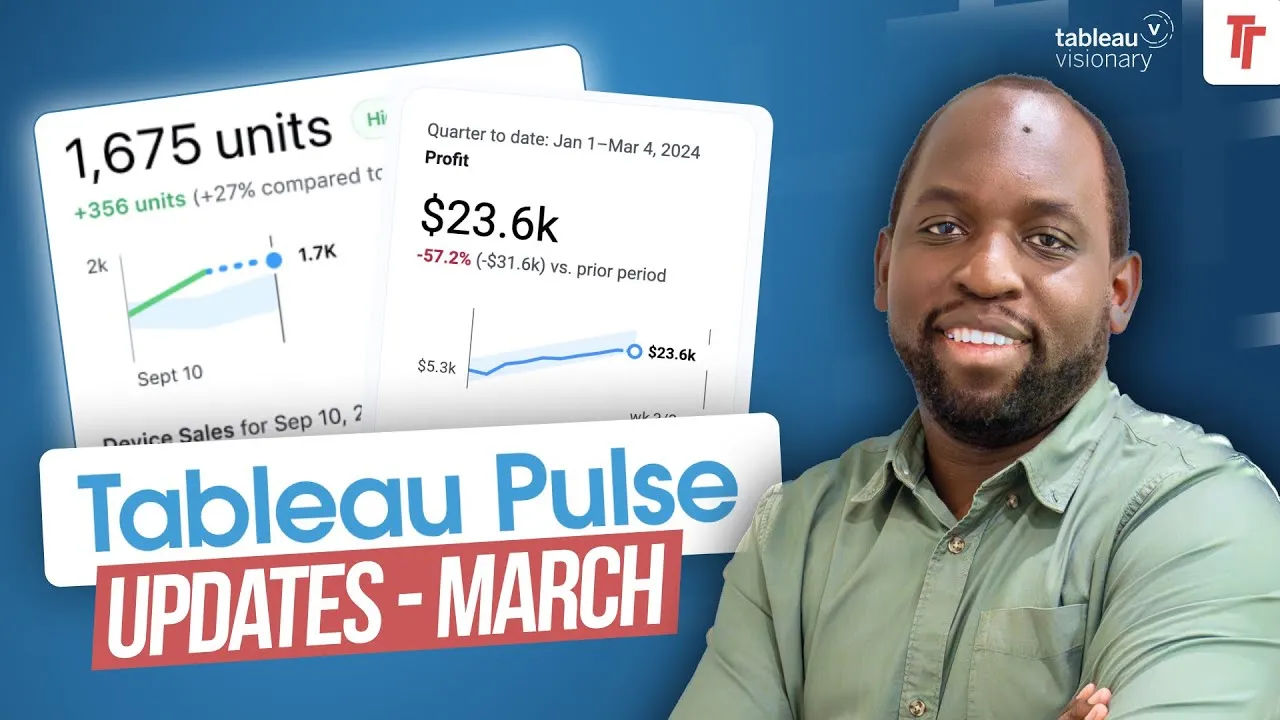
0:00Hey, it's Tim here. A large part of the
0:01Tableau Pulse experience is the mobile
0:04experience alongside the Tableau Pulse dig
0:07ests.
0:07In this video, I'm going to cover both of
0:09those all in one video. We're going to walk
0:10through everything.
0:11As you can see here on screen, I've got my
0:12phone, I've got Tableau Pulse, and I have
0:14Slack. I've even
0:15got my emails open so I can show you what
0:17all of those look like when they're
0:19engaging with Tableau Pulse.
0:21As ever, let's get started. So there's
0:23actually a lot to sort of go through here.
0:25I couldn't really
0:26think of an organized way of doing it, so I
0:28just put everything on screen and I was
0:30hoping that by
0:31the time I hit record, I'd have a logical
0:33way to start this video. But I think there
0:35is a logical
0:36place. First of all, where are these
0:38settings engaged? So when you go to Tableau
0:41Pulse,
0:42there have been some improvements. I've got
0:43another video after this one which goes
0:45through some of the
0:46new updates of Tableau Pulse for this month
0:48. By this month, I mean March, not April,
0:51because I'm
0:51recording this in April. But nonetheless,
0:53there's some new updates with the interface
0:54that improve
0:55a few things that I think have been bugb
0:56ears. There's still a few big things to tick
0:58off the list,
0:59but in my previous videos, what I haven't
1:02covered is where exactly to set your Table
1:04au Pulse
1:05digest. So if you head to the top right
1:07hand side here, click on the little icon on
1:10the top right
1:10hand side, select preferences, you'll see
1:13that you get these two options for Slack
1:15and email. Now when
1:16you enable these, that switches those on,
1:18but then there's a second setting here that
1:20gives you the
1:20frequency for those. And I think by default
1:23, this is set to monthly, I set it to daily
1:25just so I
1:25could have something to show for this video
1:27over the last few weeks. It does give you
1:29the specific
1:30time that these are sent. So they are
1:32generated and sent at a specific time. This
1:34is not editable.
1:35This maybe speaks to the fact that Tableau
1:38Pulse is being built separately from Table
1:40au Cloud.
1:41In Tableau Cloud, the setting that would
1:43control this would be something like your
1:45subscription
1:45settings, but that's not the case here.
1:47This is being centrally managed by Tableau.
1:50Okay, so once
1:51you hit save, once you set those options,
1:53two things are going to happen. If you have
1:55Tableau
1:55connected to your Slack environment, your
1:58Pulse digest will find its way to the Table
2:01au app inside
2:02of Slack. I'll show you what that looks
2:03like in a second. And then secondly, you'll
2:05get an email as
2:06well. Now I do know there's a lot of talk
2:07about Microsoft Teams and Teams is always
2:09the sort of
2:10forgotten soul here, but we have to
2:11remember that Slack is the Salesforce
2:13product here. So of course
2:15it's going to get the sort of first-party
2:17experience inside of this particular
2:20application. But I'm assuming that Teams
2:24will find its way onto this specific list,
2:27but I don't think it will be a native
2:28connection. I think it will be something
2:30like
2:30an API that allows you to push to Tableau.
2:33Sorry, an API that allows you to push to
2:37Teams and you
2:37can go from there. Anyway, once you hit
2:39save, those settings are saved and then you
2:41start to
2:42get those digests. What do they look like?
2:44Well, if I switch over to Slack, I can
2:46bring it up on
2:46screen. So what I've done here is I've just
2:49searched my specific, let's call it the TN
2:51Media
2:52Slack app. I have a few people in here, so
2:54I'm just going to keep it constrained to
2:56this search,
2:56so nothing else comes up on screen while I
2:58'm in here. But nonetheless, this is an
3:00example of one
3:01I received today. It came this morning and
3:03you can see the three key metrics that I'm
3:05seeing now.
3:06I had thought we'd get a sort of a visual
3:08experience in here. I thought we'd get the
3:10pulse digest images that we'd normally see
3:13elsewhere in here, but for some reason the
3:15images aren't loading. I don't know if that
3:17's just sort of part of this specific tool,
3:20but it's
3:21pretty easy to go ahead and set up the
3:23Tableau app inside of Slack. It's a pretty
3:25straightforward
3:26connection. It uses the connected apps
3:28interface and you're just then able to set
3:29it up.
3:30Anyone could really do this. It's nothing
3:32sort of complex. You do need your Sales
3:35force Slack admin
3:37and your Tableau cloud admin to sort of be
3:39working together to do this. If they're the
3:41same person,
3:41great. That's sort of what happens for me
3:43here. I can just set up both in one go.
3:45But nonetheless, this is it. So this is
3:48what you get. All the key metrics that are
3:50changing,
3:50the things you need to know about land in
3:52your inbox. Now, the other thing to bear in
3:55mind is
3:55that these three that I'm getting at the
3:57moment are just the three that I've got
3:59here. So there's
3:59nothing sort of complex. What I'm curious
4:01to know if you've had many more metrics set
4:03up, I did
4:04previously have something like 40 metrics
4:06set up, then I had to clear them all in the
4:08previous
4:09instance of Tableau Pulse. But nonetheless,
4:11if you do set up more, let's say than 10, I
4:14'd be curious
4:14to know how it prioritized them. I don't
4:16know if it's just in order of the date that
4:18you followed
4:18them or if there's any sort of peculiar
4:21ranking in terms of importance that's
4:23coming from behind
4:24the scenes that might be going on. If you
4:25know the answer to that, let me know in the
4:27comments. But
4:28there's not much to see here. What I will
4:29say is that look, when you click on any one
4:31of these
4:32metrics, it does sort of drill into the
4:33specific things. So sorry, what I did is
4:35that I clicked
4:36onto the message. Now I get it here on the
4:38right hand side. So if I actually hover
4:40over this,
4:41it's just a link deep into the Tableau
4:43Cloud or Tableau Pulse experience. If I go
4:46ahead and click
4:47on that, it opens it and because I'm
4:48already logged in, I go straight to the
4:50application
4:51deep into the analysis that's going on. We
4:53're in a new month. So this has been reset
4:56because of the
4:56month to date setting that we've just got
4:58up here. But nonetheless, that's a pretty
5:01sort of standard
5:01expectation. So if we go back from Slack,
5:04all these links, anything in blue, send you
5:06to the
5:07thing you need to follow. At the very
5:08bottom, there is another option to see the
5:10metrics that
5:10you follow. This just dumps you straight
5:12into Tableau Pulse, there's nothing sort of
5:14complex
5:14there. And the Manage Digest just dumps you
5:16straight into the Show Preferences. So you
5:18could
5:18do something really clever with this. Of
5:20course, if you know what these URLs are,
5:22you can just go
5:22ahead and grab them and send these in an
5:25email to your colleagues to set up Tableau
5:27Pulse in the
5:28correct way. So these are really nice links
5:29to sort of bear in mind, you can kind of
5:31grab this,
5:32it's nothing original, you could already
5:33get these from sort of up here, if you
5:34click on Preferences,
5:35and you go to this page, you can see it's
5:38actually, it's actually not that easy,
5:40actually, because
5:41these, this, this doesn't sort of generate
5:44a URL, if you look up here in the URL tab,
5:46it's actually
5:46not there. So just knowing that specific
5:50capability there from the Slack setup,
5:53giving you those URLs
5:54is a really nice way to sort of build
5:56something more useful for your end users.
5:58Okay, that's the
5:59Slack experience. Let's hop over to the
6:02mobile experience. So let me just make sure
6:05my mobile
6:06experience is running. So if we go over to
6:08the mobile experience, this is the Tableau
6:11mobile app,
6:11if I just go to the homepage, you can see,
6:13let me actually close some of these other
6:15windows just to
6:15make it a little bit easier to see. Let's
6:17do this. And then we can bring this back in
6:19here. Okay,
6:20so this is the this is a Tableau mobile
6:21experience, you can see I've got right in
6:23the middle of the
6:24screen. And it's just the standard thing.
6:26Now the one observation I had with the
6:27Tableau
6:28mobile experience is it doesn't feel like
6:30Tableau Pulse is a first party citizen.
6:33Because by default,
6:33you load on the homepage, you can see that
6:35just here on the bottom of my screen. And
6:38the side
6:39effect of that is that you don't really
6:40have anything to do with Tableau Pulse, you
6:42have to go
6:43to this tab here on the right hand side.
6:45And when you load that you get pretty much
6:47what you're
6:47seeing on the web experience. So it's
6:49almost identical. In fact, if I actually go
6:51to the
6:51Tableau past landing page, and then we
6:53bring that mobile page back up, you can see
6:55that look,
6:56it's basically the same thing, the exact
6:57same figures all being generated from the
6:59same source.
7:00Now the mobile experience is as interactive
7:02as you'd expect, when you click on a metric
7:03,
7:04you can of course go in, it loads it up, it
7:05's a little bit slow, I don't know why that
7:07is.
7:08I would think that these are pre generated
7:10in the background. So why they need to load
7:12,
7:12I'm not sure. But nonetheless, everything
7:14is here. Now, the nice thing with this
7:17mobile experience
7:17is that it's optimized for mobile. So you
7:19can go ahead, select show filters, and you
7:21'll see the
7:22filters that it's actually using. You can't
7:24adjust these filters here, you'd have to go
7:26and do that
7:27inside of the Tableau pulse experience. And
7:29you can see that I'm just clicking on these
7:31, and I'm
7:31just popping up with pop ups, there's
7:33nothing I can do to change them. So you can
7:35only show the
7:36filters that have been used, you can't
7:37change them. That said, you can interact
7:39with the rest
7:40of experiences normal. So if you want to go
7:41between the tabs, for example, the
7:43breakdown
7:43and the overview, you absolutely can. And
7:45you can obviously sort of tap on the charts
7:47, and they
7:48just as interactive as normal, but touch
7:50versus hovering us to slightly different
7:52experiences
7:53across desktop and app. So really, what I'd
7:55say is look Tableau pulse on the mobile
7:57experience is
7:58just a mobile optimized version of Tableau
8:00pulse in Tableau cloud. So if I go to let's
8:03say this
8:04metric, particularly here, and we go have a
8:06look at that, you'll see that it's more or
8:08less the
8:08exact same experience, nothing, nothing new
8:10there, the filters have only got one month
8:12to date. And
8:13again, if you go down, you can see the
8:14breakdowns are happening as expected. And
8:16this is actually a
8:17good one to show you what the ask the ass
8:19data experience. That's not the feature.
8:23The ask
8:23experiences like inside of Tableau pulse,
8:25of course, I can actually go ahead and type
8:27this
8:27and it's got the same capability as we
8:29would expect on Tableau pulse in my next
8:31video, I'll
8:32cover what this feature is because it's a
8:34new edition in March. So just go ahead and
8:37check out
8:37that video immediately after this one to
8:39sort of see that feature play out. But you
8:41can of course,
8:41select each of these sort of, let's say
8:44semantic questions that have been pre
8:47generated. And as you
8:48click on them, you can see them just
8:50appearing below here. So you can see if I
8:52tap you know,
8:52which segment had high profit, that's the
8:54section that comes up and everything you've
8:55clicked on
8:56before just appears here on the bottom. So
8:58more or less the exact same experiences we
9:00're seeing
9:01over on the let's say the the desktop
9:03experience, I want to say desktop, but
9:06really we're talking
9:08about the browser experience. So in fact,
9:10if I was to close this side menu here, and
9:13let's just let's
9:13just try and do this. Let's just shrink
9:16this right down and close that. And then we
9:19put this over
9:20here, you can see that the Tableau pulse
9:23mobile experience by if I actually go into
9:26I'm clicking
9:27on it on my screen thinking it's right
9:28there. But of course, it's not it's in my
9:30phone. If I
9:31go into it, and I put it side by side, let
9:32's do it this way. You can see that it's
9:36basically the same
9:38experience. Now this is set up slightly
9:40differently. It's obviously got the three
9:42different things. But if we go here, and
9:44you can see, okay, let's line them up
9:47almost as much as I
9:48didn't as much as we identified can, it's
9:50more or less the same experience. What I
9:52will do over here
9:53is I'll just make this larger, so that it
9:56feels roughly the same proportions. There
9:58we go. So here
9:59I am getting an exact match of the two just
10:03so you can see that they are really the
10:06same thing. There
10:07you go. So I've tried to do my best to
10:09match everything up. If I just maybe set
10:11this up,
10:12let's just keep going until we get March.
10:14There we go. So there we go. That's an
10:15exact, that is an
10:17exact match to just show you that really
10:19all that's happening is that the Tableau
10:21mobile app is just
10:22taking the browser experience and putting
10:24it inside of the mobile app, which is good
10:26on one
10:27side, but also shows you that really Table
10:29au Pass is not really fully integrated
10:30inside of the mobile
10:32app. And what I would expect is a little
10:33bit more of this to sort of start working.
10:35So as we sort of
10:37if I sort of log in, and scroll down here,
10:40you can see that look, it's almost
10:42identical, where
10:43whichever part you go to, it's exactly the
10:45same. I'm not sure if that's unrealistic of
10:47me to expect
10:48more. But hey, you know, I think there's
10:50more you could do to integrate these two.
10:51So anyway,
10:52where I think this is broken is, of course,
10:53it's really a second citizen inside of the
10:55Tableau
10:56mobile app. I can't favorite these and have
10:58them appear on my homepage. You can clearly
11:01see here
11:01that Tableau Cloud favorites are separate
11:03from the Tableau Pass favorites, and so on
11:05and so forth.
11:06So we're still a way away from what I think
11:08is a blended experience inside of Tableau
11:10Cloud.
11:11I think that's coming in the future, maybe
11:12that sort of integration task is slightly
11:14bigger.
11:15Maybe that's something for next year. But
11:17nonetheless, I would love to see all of
11:18these
11:19being sort of integrated into one
11:20experience, potentially even letting us use
11:23Tableau Pass
11:23metrics inside of dashboards, you know, sem
11:26antically pulling from what's inside of
11:28the dashboard to create the metrics that is
11:29actually a feature that's supposed to be
11:31available
11:31soon. So be sure to check out that when it
11:34drops. Now, the last thing I want to show
11:36you today is
11:38the email experience. If I look past my mic
11:41and my other item here, we can see I've
11:44done a Google
11:44search inside of Tableau Pass, I did this
11:46because I wanted to sort of refine the
11:48scope of my Tableau
11:49Pass digests a little bit. And if we go
11:51ahead and click on this particular one here
11:53, you'll see
11:54that I've actually got one that I generated
11:56a while back now the metrics that I've got
11:58here
11:58were in a previous instance of Tableau Puls
12:00ar, I don't actually have these. So I won't
12:02click on
12:02any of these to show you what that's like.
12:04But just to give you a sense of if you've
12:06got a lot
12:06of them, this is how they come pre
12:08organized. I didn't really see any sort of
12:10logic to how these
12:11are organized other than the order in which
12:13I followed them. But if there is some sort
12:15of other
12:16smart sort of sorting mechanisms that
12:18sorting these by priority in the future, I
12:21'll be sure to
12:21let you know. And the other thing to bear
12:23in mind is if I go to one that is sort of
12:25set up to work,
12:26I it's actually live today, I got this
12:28Tableau pulse digest seven hours ago. So it
12:31was generated
12:32at that time that Tableau was talking about
12:34any one of these, if I go ahead and click
12:36Show details,
12:37it throws me straight into the Tableau
12:38cloud experience, because I'm already
12:40logged in,
12:41I should just go straight to the pulse
12:42metric. Oh, no, I'm not logged in. That's
12:45really frustrating.
12:46Let me go ahead and log in, go on, let's
12:47let's just make sure this works properly.
12:49Let me just
12:50go ahead and sign in. I'm on a different
12:52profile. And in this particular demo window
12:54compared to the
12:55other one. But you can see here, it does
12:56actually send you directly to the
12:57experience. And that's
12:58what you'd expect. So that's really nice to
13:00see that happening. And yeah, it's good to
13:03know it's
13:03working. So not really, you know,
13:05groundbreaking stuff here. It's really good
13:07that they've thought
13:08about this across, you know, all the
13:10different interfaces. But what I'll say is
13:13that this is not
13:14the integrated experience. This feels to me
13:15like just taking what they've done with
13:17emails,
13:18taking what they've done with pulse and
13:19putting them in browser windows in
13:20different places,
13:21whether it's slack as images and text, or
13:23whether it's the mobile app as just the
13:25browser window
13:26with a mobile optimized version. And that's
13:28pretty much it. That's all I wanted to show
13:30you.
13:30Very scattershot video, I know, but I
13:32couldn't think of a nicer cohesive way to
13:35tie all these
13:36up. And it wasn't really worth a full demo.
13:38I just wanted to show you this to make sure
13:41you're not
13:41missing out. So that's pretty much it for
13:43the pulse digest capabilities and also the
13:46experience
13:47inside of slack and the tableau mobile app.
13:49Be sure to check out the next video after
13:51this one
13:51where I'll actually cover what's changed in
13:54March. In terms of updates, they have
13:56updated a few
13:57things, one little bugbear that I'll call
13:59out right now they've updated just to give
14:00you a sneak
14:01peek is they've given you an escape hatch
14:03over to tableau cloud that's just so useful
14:05and another
14:06escape hatch to show you all your followed
14:08metrics in one place, wherever you are
14:10across the whole
14:11application. So that is good to know. Okay,
14:14so that's pretty much it. Thanks for
14:17watching,
14:17and I'll see you in the next video.
14:18Transcribed by https://otter.ai
14:19Transcribed by https://otter.ai
14:22Transcribed by https://otter.ai
14:23Transcribed by https://otter.ai
14:29[ Silence ]
 Tableau | Data visualisation | Tool strategy