Tableau | Data visualisation | Tool strategy
 Tableau Omnibox in data connection Window | New in Tableau 2023.2
Ever wondered what an Omnibox is in Tableau? In 2023.2 it just landed in the connect dialog.
- The Omnibox is Tableau's contextual search interface that surfaces recently accessed items and remembers previous searches
- In Tableau 2023.2 the Omnibox is now part of the Connect window dialog in both Cloud and Desktop
- When connecting to a new data source you can type into the search area and double-click a result to connect immediately
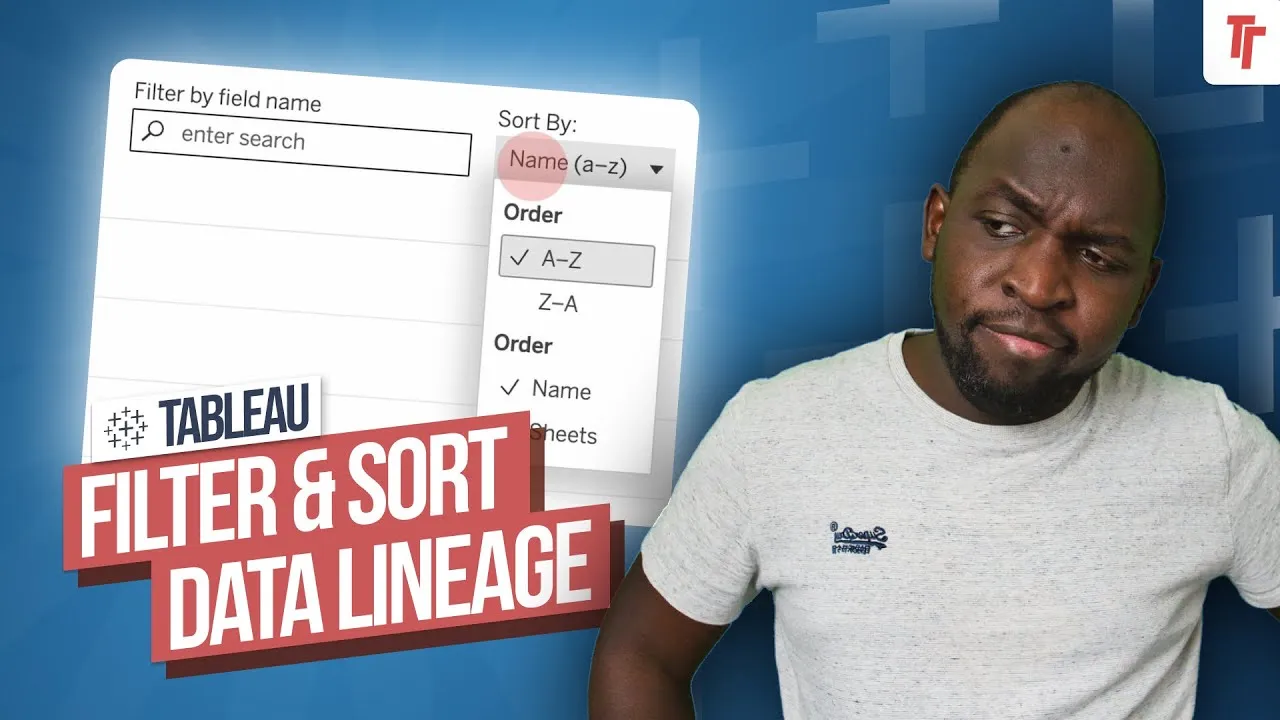
- The Omnibox supports filters, including filtering by certified data sets
- You can narrow searches by context such as data sources, virtual connections, databases and tables
The Omnibox is Tableau's contextual search box that surfaces recent items and remembers past searches, and as of 2023.2 it's now built into the Connect dialog so you can search and connect to data sources the same way you search Tableau Cloud pages.
Demoed in Tableau Cloud first to explain what the Omnibox is, then shown in the Connect dialog when setting up a new workbook, in both Cloud and Desktop.
- What the Omnibox actually is 0:00
It's the search box in Tableau Cloud that, as you type, contextualises your search and immediately surfaces items you've recently accessed rather than making you run a full search.
- It remembers your previous searches 0:40
If a search finds nothing the first time, typing a related term later can resurface that earlier search — the Omnibox keeps a memory of what you've looked for, not just what exists.
- Now built into the Connect dialog 1:02
From 2023.2, when you set up a new workbook and click into the search data field, the same Omnibox interface appears — in both Tableau Cloud and Desktop, not just on the Cloud search pages.
- Search and connect in one motion 1:21
Type into the field, hit enter to get results, then double-click the result you want and it connects immediately — you don't need to browse a separate connect screen first.
- Filter and narrow your search 2:03
The Omnibox supports filtering, including filtering to certified data sets, and you can narrow by context such as data sources, virtual connections, databases or tables to find the right asset faster.
- Tim notes the behaviour in the Connect dialog wasn't exactly identical to the Omnibox elsewhere when he tested it, possibly due to a phased rollout.
Reach for this whenever you're setting up a new workbook and need to find a specific data source quickly, especially in an environment with lots of published sources, virtual connections or certified data sets to sift through.
How this Rollup was made provenance & method
A Rollup is drafted by AI from the video's transcript, then reviewed and edited by Tim. Everything used to produce this one is listed below (the model, the exact prompt, and the source video), so the process is transparent and reproducible.
- Transcription
- On-device: NVIDIA Parakeet v3 for recent videos, OpenAI Whisper large-v3 for earlier ones. The transcript never leaves the machine or gets published.
- Drafting
- Claude Sonnet 5 in the cloud, from that transcript.
- Prompt
- The exact Rollup prompt (v2) , the full system prompt, unedited.
- Mode
- Walkthrough: a timestamped breakdown in video order, for a demo or how-to. Written before modes existed, when every Rollup was a walkthrough.
- Source video
- Watch on YouTube
- Drafted
- 5 July 2026 at 09:38
- Reviewed & edited
- 5 July 2026 at 09:41 · by Tim Ngwena
Model + prompt + video is everything you'd need to recreate a Rollup like this yourself. The one thing we don't share is the transcript.
Rights. The video and its transcript are the property of TN Media Ltd. Unauthorised use or download is prohibited. © TN Media Ltd.