Tableau | Data visualisation | Tool strategy
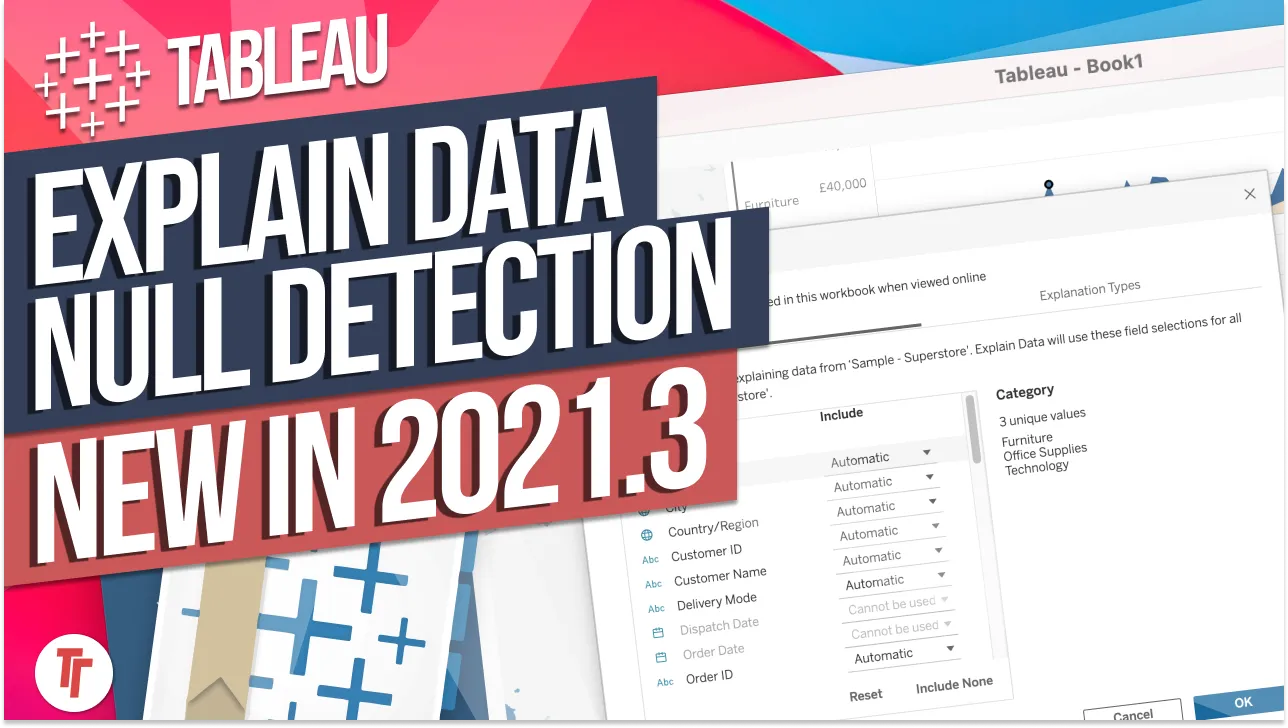
 Explain data controls in Tableau Server & Tableau Online: New in Tableau 2021.3
Tableau 2021.3 lets you control Explain Data at the workbook, permissions and site level — here's all three.
- Authors can toggle Allow Explain Data from the Data menu via the data source's Explain Data settings, or through the cog inside the Explain Data pane when viewing a data point.
- Server and site admins can disable Explain Data under Settings > General, which on Tableau Online applies to the whole instance (one site) and on Tableau Server applies per site.
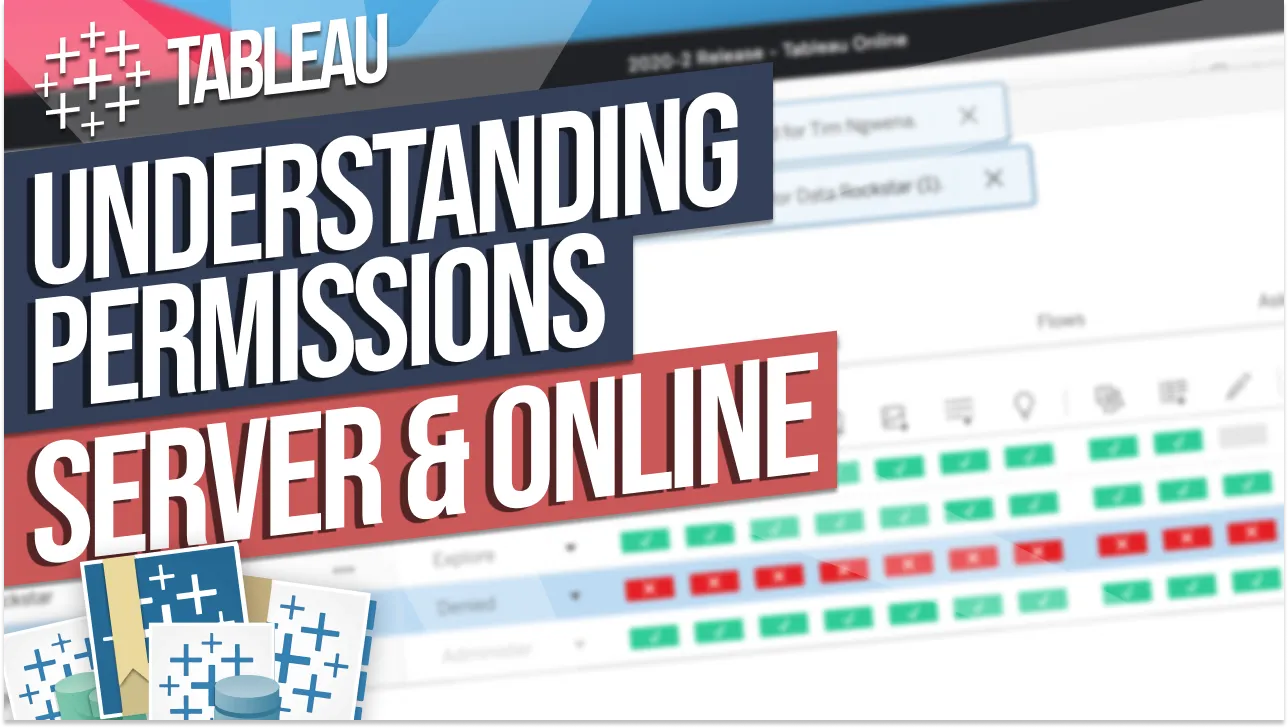
- A new Explain Data permission appears in a dashboard's permissions, letting authors grant or deny access to specific users or groups.
- A common use case is training users, then adding them to a group that unlocks Explain Data so you know it is being used correctly.
Tableau 2021.3 gives you three independent ways to control who can use Explain Data — a workbook setting for authors, a site-level switch for admins, and per-dashboard permissions — so you can decide exactly where and by whom this feature gets used.
Explain Data lets viewers click a data point and get automated explanations for it. This video covers the new controls added in 2021.3 for restricting or enabling that capability at different levels.
- Toggle Explain Data from the data source 0:13
As an author, go to Data > [your data source] > Explain Data Settings and untick or tick Allow Explain Data. This is a new, more discoverable route to a setting that governs the whole data source.
- Toggle it from the Explain Data pane itself 1:01
Alternatively, click a data point to open Explain Data, then use the cog icon in the bottom right of the pane to reach the same allow/disallow control. This route already existed before 2021.3 — it's just another entry point to the same setting.
- Disable it site-wide as an admin 1:23
Server and site admins can go to Settings > General and switch off Explain Data there. On Tableau Online this disables it for your entire instance (since one instance is one site); on Tableau Server the setting applies per site, so you can control it separately across multiple sites.
- Control access per dashboard with permissions 2:09
Open a dashboard's permissions (via the three-dot menu), and you'll find a new Explain Data icon alongside the other permission types. Use this to grant or deny specific users or groups the ability to run Explain Data on that particular visualisation.
- Combine the controls to govern rollout 3:00
A practical use case is training users on Explain Data first, then adding them to a group that's been granted the dashboard permission — so you know it's only being used by people who understand it properly, while admins retain a site-level kill switch as a backstop.
- On Tableau Online, the site-level admin setting disables Explain Data for your whole instance since each instance is only one site.
- On Tableau Server, the same admin setting is scoped per site, so different sites can have different Explain Data availability.
- The workbook-level toggle via the data source's Explain Data Settings appears to be new in this release, whereas the cog-in-pane route already existed.
Reach for this when you're rolling out Explain Data cautiously — training a subset of trusted users or managers first via permissions, while keeping an admin-level off switch available if you need to shut it down more broadly.
How this Rollup was made provenance & method
A Rollup is drafted by AI from the video's transcript, then reviewed and edited by Tim. Everything used to produce this one is listed below (the model, the exact prompt, and the source video), so the process is transparent and reproducible.
- Transcription
- On-device: NVIDIA Parakeet v3 for recent videos, OpenAI Whisper large-v3 for earlier ones. The transcript never leaves the machine or gets published.
- Drafting
- Claude Sonnet 5 in the cloud, from that transcript.
- Prompt
- The exact Rollup prompt (v2) , the full system prompt, unedited.
- Mode
- Walkthrough: a timestamped breakdown in video order, for a demo or how-to. Written before modes existed, when every Rollup was a walkthrough.
- Source video
- Watch on YouTube
- Drafted
- 5 July 2026 at 09:38
- Reviewed & edited
- 5 July 2026 at 09:41 · by Tim Ngwena
Model + prompt + video is everything you'd need to recreate a Rollup like this yourself. The one thing we don't share is the transcript.
Rights. The video and its transcript are the property of TN Media Ltd. Unauthorised use or download is prohibited. © TN Media Ltd.