Tableau | Data visualisation | Tool strategy
 How to see content shared with you
Sharing and permissions are two separate things in Tableau, and confusing them will trip up a lot of people.
- The Share with Me option appears in the left-hand menu of Tableau Online and Server, showing content others have sent you along with who shared it.
- Sharing and permissions are separate concepts: sharing a view does not grant access, so a user must already have permission to actually open shared content.
- When permissions are removed, the item stays in Share with Me but shows a 'permission required' notice, and the user can request access via an automated email.
- When content is deleted from the server, it disappears entirely from the Share with Me section.
- Shared messages are captured in the notification email, giving recipients context on who shared and why.
Tableau's Share with Me feature lets users see content others have sent them, but sharing is separate from permissions — sending someone a link doesn't give them access, it just points them to something they may or may not already be able to open.
Demonstrated on Tableau Online/Server 2020.3 using a metrics view shared between two logged-in users on the same test instance.
- Find Share with Me 0:00
A new option appears in the left-hand menu that collects all content other users have shared with you, separate from content you own or have browsed to yourself.
- Recipient needs access already 1:14
Before sharing anything, check the recipient already has permission to the content — sharing does not grant access, it only surfaces the item to them if they're already entitled to see it.
- Share a view with a message 1:30
From a view, use the share icon to send it to a specific user and attach an optional message; that message gets included in the notification email so the recipient has context on why it was shared.
- Removing permissions doesn't remove the share 2:33
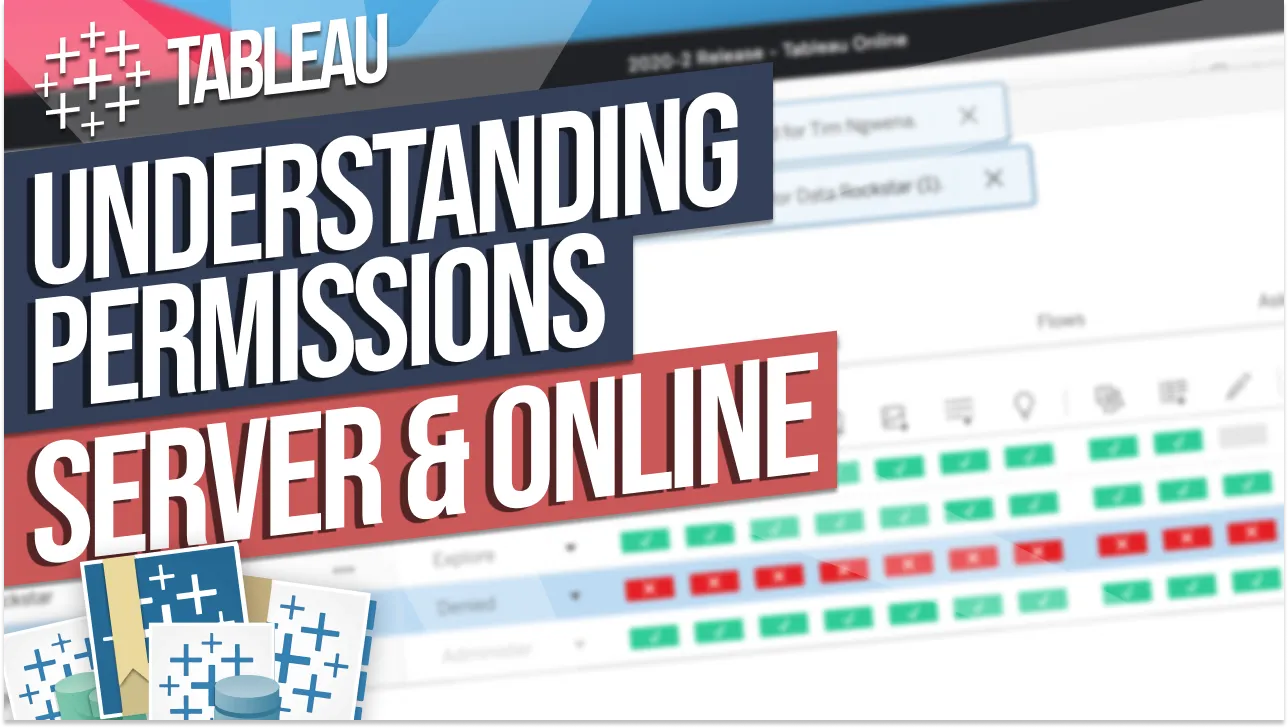
If you revoke a user's access via the permissions interface after sharing, the item stays visible in their Share with Me list but shows a 'permission required' notice; they can click through to automatically request access via email.
- Deleting content removes it entirely 4:23
If the underlying content is deleted from the server rather than just having permissions removed, it disappears completely from Share with Me — there's no trace or placeholder left behind.
- Sharing and permissions are two separate systems — don't assume sending someone a link means they can open it.
- Removed permissions leave a visible 'permission required' placeholder with a request-access flow; deletion leaves nothing at all.
- The share message you write gets captured in the notification email, so it's a useful way to flag why something matters to the recipient.
Reach for this when you need to point a colleague to a specific view or metric and want them to know who sent it and why, or when you're troubleshooting why someone can't open something that was 'shared' with them.
How this Rollup was made provenance & method
A Rollup is drafted by AI from the video's transcript, then reviewed and edited by Tim. Everything used to produce this one is listed below (the model, the exact prompt, and the source video), so the process is transparent and reproducible.
- Transcription
- On-device: NVIDIA Parakeet v3 for recent videos, OpenAI Whisper large-v3 for earlier ones. The transcript never leaves the machine or gets published.
- Drafting
- Claude Sonnet 5 in the cloud, from that transcript.
- Prompt
- The exact Rollup prompt (v2) , the full system prompt, unedited.
- Mode
- Walkthrough: a timestamped breakdown in video order, for a demo or how-to. Written before modes existed, when every Rollup was a walkthrough.
- Source video
- Watch on YouTube
- Drafted
- 5 July 2026 at 09:38
- Reviewed & edited
- 5 July 2026 at 09:41 · by Tim Ngwena
Model + prompt + video is everything you'd need to recreate a Rollup like this yourself. The one thing we don't share is the transcript.
Rights. The video and its transcript are the property of TN Media Ltd. Unauthorised use or download is prohibited. © TN Media Ltd.