Tableau | Data visualisation | Tool strategy
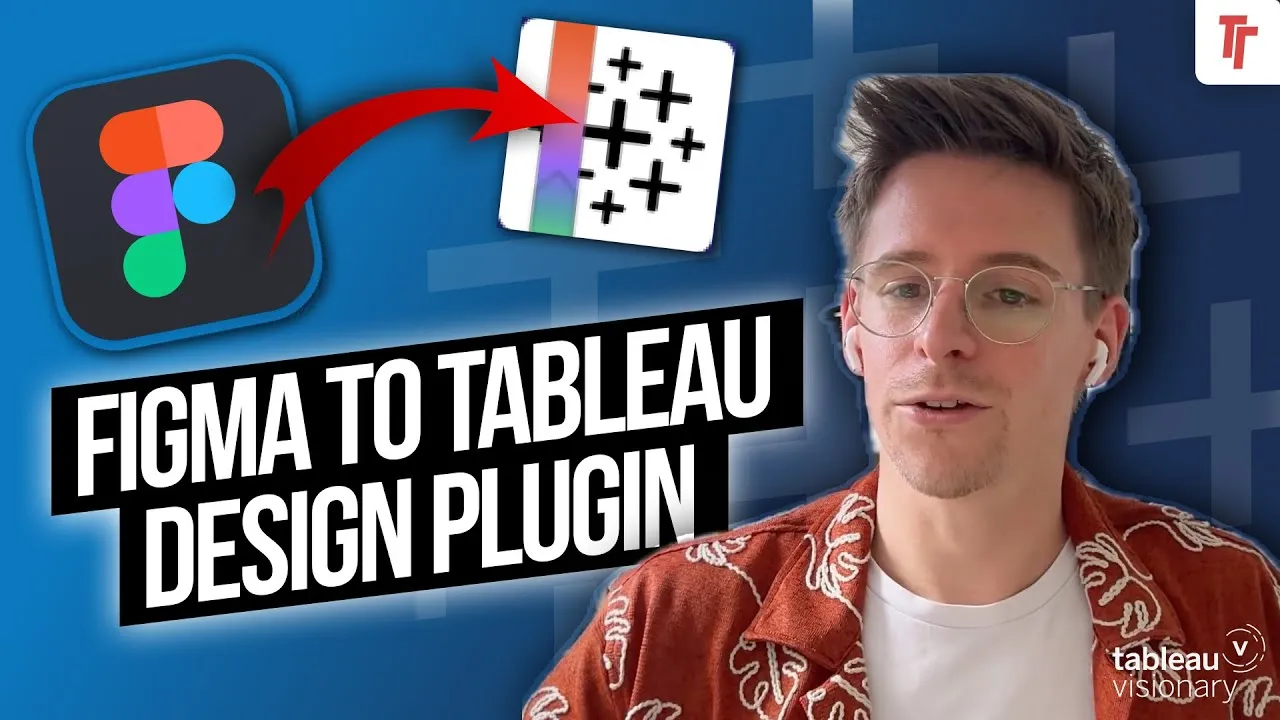
 Custom Themes in Tableau 2025.1 - Step-by-Step Guide
Custom themes are finally here in Tableau 2025.1, and they kill off one of the most time-consuming parts of dashboard styling.
- Custom themes in Tableau 2025.1 are imported and exported via JSON files through Format > Import/Export Custom Themes
- Applying a theme affects every tab in the workbook, but you need to refresh all thumbnails to see the change reflected in previews
- You can export a theme from an existing styled workbook to reuse your organisation's styling template
- This is a version-one feature focused mainly on fonts and some colour elements, with broader styling (including chart themes) expected in later releases
- Because themes are JSON, third-party tools like The Data Viz's custom theme generator let you build and edit themes visually, or you can hand-edit the JSON like CSS
Tableau 2025.1 introduces custom themes: JSON files you import to restyle an entire workbook in one go, replacing manual formatting of every sheet.
Demoed on a standard Superstore workbook where every tab uses Tableau's default look. The goal is to apply a consistent custom style across the whole workbook without reformatting each sheet individually.
- Import a custom theme via JSON 0:22
Go to Format > Import Custom Themes and select a JSON theme file. You'll be asked whether to preserve existing settings or override everything in the workbook — overriding applies the theme instantly across every tab, not just the one you're viewing.
- Refresh thumbnails to see it applied 1:00
After importing, the sheet tab previews may still show the old style. You need to refresh all thumbnails for the preview panel to reflect the new theme across every tab.
- Export a theme from a styled workbook 1:23
If you've already built a workbook with your organisation's styling, you can export its theme as a JSON file under Format > Export Custom Theme, turning that styling into a reusable template for other workbooks.
- Revert to the original theme 1:42
Importing and overriding with a saved default (or original) theme file reverses the styling and sends the workbook back to vanilla Tableau formatting, again requiring a thumbnail refresh to see it reflected.
- Know what's actually styleable 2:16
This is a version-one feature, mainly covering fonts and some colour elements — tooltips, titles, headers, legends — rather than full chart styling. Tim expects Tableau to expand this over future releases, potentially down to chart-level themes.
- Use third-party tools to build themes visually 3:42
Because themes are plain JSON, external tools such as The Data Viz's custom theme generator let you visually configure colours and elements and export a ready-made theme file, as an alternative to writing JSON by hand.
- Or hand-edit the JSON directly 4:22
You can open the theme file in any JSON/text editor and adjust attributes directly, similar to editing CSS, if you're comfortable working with the raw file rather than a GUI.
- This is a v1 feature — it mostly covers fonts and a few colour elements, not full chart or mark styling yet.
- Thumbnail previews don't update automatically after applying or reverting a theme; you must manually refresh all thumbnails.
- Importing a theme asks whether to preserve or override existing settings, so check that choice before applying.
- Third-party generators are already emerging since themes are just JSON, but quirks can appear (Tim hit an issue re-importing a theme he'd previously overwritten).
Reach for this when you need to apply a consistent, organisation-wide look across a whole workbook (or many workbooks) without manually reformatting every sheet, or when you want to package up a styling template to reuse elsewhere.
How this Rollup was made provenance & method
A Rollup is drafted by AI from the video's transcript, then reviewed and edited by Tim. Everything used to produce this one is listed below (the model, the exact prompt, and the source video), so the process is transparent and reproducible.
- Transcription
- On-device: NVIDIA Parakeet v3 for recent videos, OpenAI Whisper large-v3 for earlier ones. The transcript never leaves the machine or gets published.
- Drafting
- Claude Sonnet 5 in the cloud, from that transcript.
- Prompt
- The exact Rollup prompt (v2) , the full system prompt, unedited.
- Mode
- Walkthrough: a timestamped breakdown in video order, for a demo or how-to. Written before modes existed, when every Rollup was a walkthrough.
- Source video
- Watch on YouTube
- Drafted
- 5 July 2026 at 09:38
- Reviewed & edited
- 5 July 2026 at 09:41 · by Tim Ngwena
Model + prompt + video is everything you'd need to recreate a Rollup like this yourself. The one thing we don't share is the transcript.
Rights. The video and its transcript are the property of TN Media Ltd. Unauthorised use or download is prohibited. © TN Media Ltd.