Tableau | Data prep | Tool strategy
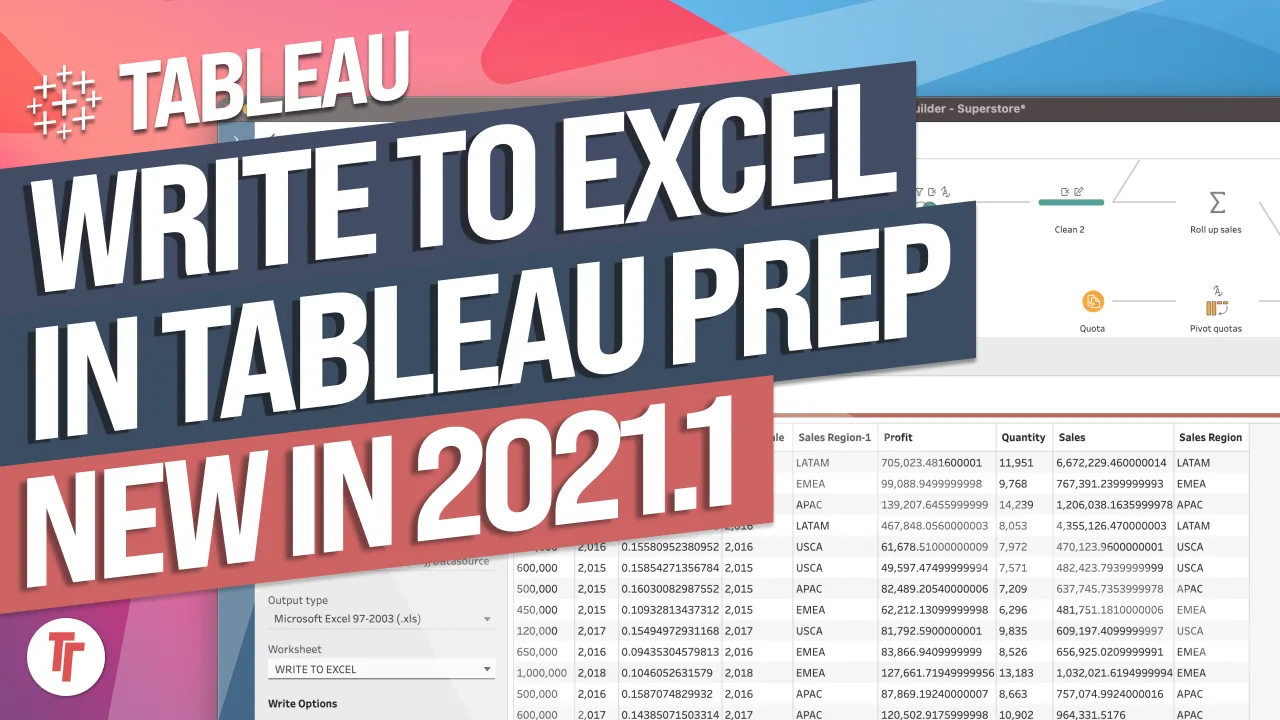
 Tableau Prep Builder in the browser
Tableau have brought the full power of Prep to the browser, and the heavy lifting now lands on your IT admins instead of your laptop.
- Tableau Prep in the browser is launched via the new Flow project type under Explore in Tableau Online or Server
- Flows run on the server rather than your local machine, so heavy RAM usage and grogginess become an IT admin concern instead of yours
- The browser version automatically gets the latest features whenever your Tableau Server is upgraded
- The export-to-static-file option has been removed, keeping outputs published to Tableau Server or a database within the platform
- Published flows run via a job queue, so total runtime is queue time plus actual run time, with a draft-capture feature protecting you if you close the tab
Tableau Prep Builder now runs entirely in the browser, giving you the full desktop capability without needing Prep installed locally, and shifting processing load from your laptop onto the server.
Tim connects to an Excel file (the sample Superstore dataset) inside Tableau Online, then builds a simple flow with a split and a couple of joins before publishing it to run on server.
- Launch Prep via the new Flow project type 0:29
In Tableau Online or Server, a new "Flow" option now sits alongside Workbook under Explore. Clicking it opens Prep Builder in a new browser tab that behaves like the desktop version.
- Connect to data as normal 1:01
You connect to data (Excel or a database) and drag tables onto the canvas exactly as in desktop Prep. Everything you do here actually runs on the server rather than your local machine.
- Build joins and splits 2:02
Standard Prep operations — automatic splits, joins between tables, choosing left vs inner joins — all work the same way in the browser. This part of the workflow is unchanged, so existing Prep skills transfer directly.
- Publish the flow to server 3:30
When outputting, you can publish to Tableau Server or a database, but the option to export a static file has been removed — outputs now stay inside the platform. You must publish the flow itself before you can publish the output/run it.
- Draft capture protects unsaved work 4:21
If you accidentally close the tab before saving, reopening the flow recovers most or all of your unsaved changes, including names you'd already entered — so an accidental close isn't the disaster it would otherwise be.
- Running flows goes through a job queue 5:02
Hitting run flow adds the job to a shared queue rather than running instantly, since it's competing with other jobs on the same server instance. Total time to completion is queue time plus actual run time, and you can check a job's progress or history on the jobs page if you have sufficient access.
- Since flows now run server-side, heavy workflows that used to make desktop Prep groggy and RAM-hungry become an infrastructure concern for IT admins rather than a problem on your laptop.
- You automatically get the latest Prep features the moment your Tableau Server/Online instance is upgraded, with no separate desktop install to update.
- Queue times on Tableau Online were short in the demo (roughly a minute or less), but on your own server the wait depends entirely on how your admin has it configured.
- Sample datasets like Superstore can change between Tableau versions, so joins/relationships you expect from memory may not hold — check the actual data first.
Reach for this when you want to do quick data prep and publish straight to Tableau Server without installing Prep locally, or when you want heavy prep workloads handled by server infrastructure instead of your own machine.
How this Rollup was made provenance & method
A Rollup is drafted by AI from the video's transcript, then reviewed and edited by Tim. Everything used to produce this one is listed below (the model, the exact prompt, and the source video), so the process is transparent and reproducible.
- Transcription
- On-device: NVIDIA Parakeet v3 for recent videos, OpenAI Whisper large-v3 for earlier ones. The transcript never leaves the machine or gets published.
- Drafting
- Claude Sonnet 5 in the cloud, from that transcript.
- Prompt
- The exact Rollup prompt (v2) , the full system prompt, unedited.
- Mode
- Walkthrough: a timestamped breakdown in video order, for a demo or how-to. Written before modes existed, when every Rollup was a walkthrough.
- Source video
- Watch on YouTube
- Drafted
- 5 July 2026 at 09:38
- Reviewed & edited
- 5 July 2026 at 09:41 · by Tim Ngwena
Model + prompt + video is everything you'd need to recreate a Rollup like this yourself. The one thing we don't share is the transcript.
Rights. The video and its transcript are the property of TN Media Ltd. Unauthorised use or download is prohibited. © TN Media Ltd.