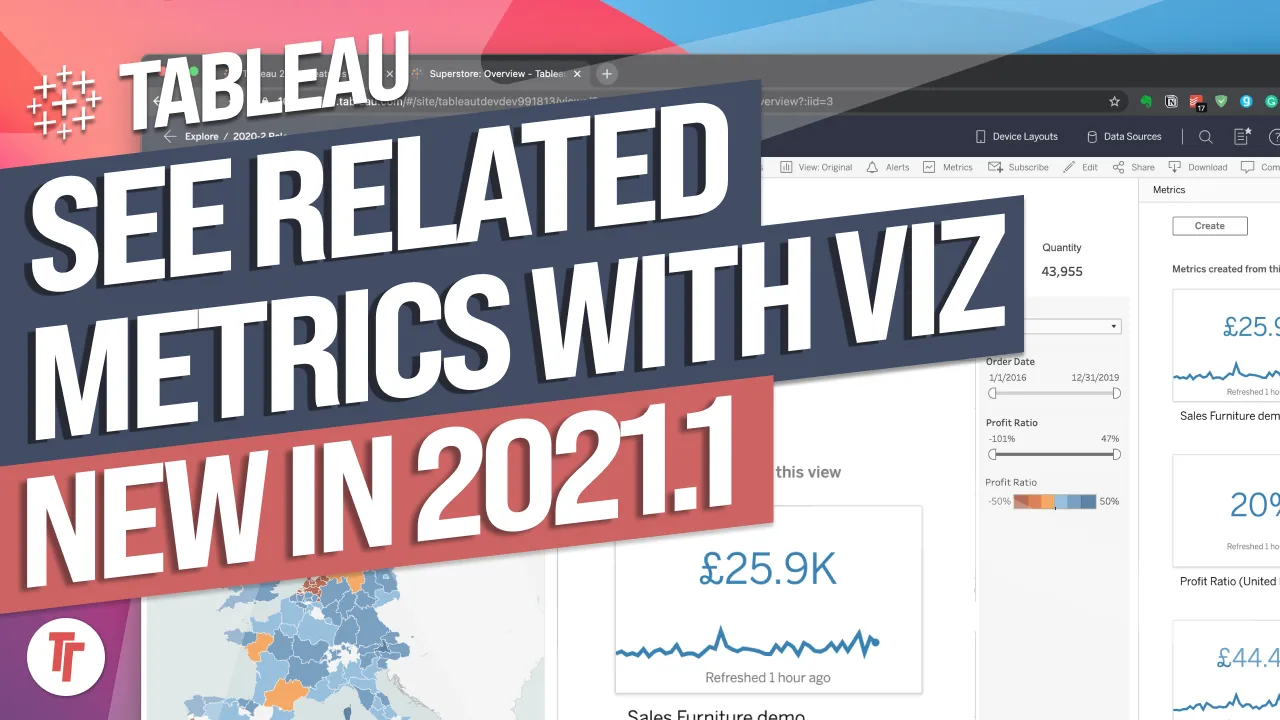
Tableau 2020.2: Metrics on Tableau Server, Tableau Online and Mobile
You don't need Tableau Desktop or a single custom chart to give every user quick insights on the fly with Metrics.
- Metrics can only be created from a view in a workbook already published to Tableau Server or Tableau Online, and they stay linked to that source workbook.
- Creating a metric is as simple as clicking a mark on a viz, but you must check that Tableau has picked the right measure and dimension, as map selections can default to latitude.
- Metrics live in the project hierarchy like workbooks, and deleting the connected view or workbook stops the metric from functioning.
- You can favourite and share metrics, with favourites surfacing at the top of Tableau Mobile for quick access.
- On mobile you can adjust the date range, change the comparison period (such as previous year), show a comparison line, and toggle the value between absolute number, absolute difference and percentage.
0:00Hey it's Tim here and in today's video I'm
0:01going to be showing you how to use the new
0:03feature
0:04in 2020.2 called metrics. In order to
0:07create a metric you first need to have a
0:10workbook
0:10published to the Tableau server. So let's
0:12go ahead and publish one of the sample work
0:14books
0:15here in front of us. I'm going to use Super
0:16store. This is a sample workbook that comes
0:19in every
0:20installation of Tableau so if you're
0:21following along that's the version you need
0:23to use.
0:23Now we're going to use this particular view
0:26here to create all our metrics. We don't
0:28need
0:29anything else in order to create this. I'm
0:31already logged into my Tableau server so I
0:33'm going to go
0:34ahead and publish the workbook to the
0:36server. I already have a project called
0:39metrics where
0:40I'm publishing all this work too so I'm
0:42just going to go ahead and publish it up
0:44without changing any
0:45of the default settings. Once this is
0:48published Tableau should open up a browser
0:50window showing
0:51me my published workbook. Now we have a
0:55published workbook we can actually go ahead
0:57and create our
0:58first metric. Now I'm going to show you
1:00this in the grid view by changing this
1:02option here to the
1:03left and you can see I have several views
1:05that I can use to create my metric. I'm
1:07going to go to
1:08the overview because that's what we saw
1:11initially and once this loads you'll notice
1:14that the toolbar
1:15at the top has this new option here. If I
1:17just zoom into that you'll see that the
1:18metrics option
1:19there is enabled but when you initially
1:21click on that for the first time you'll see
1:23here that
1:24you're prompted to select a mark on the
1:26visualization. So let's go ahead and do
1:28that.
1:29I'm going to go here to furniture and I'm
1:31going to select the profitable
1:32orders in the furniture category in August
1:35of 2017 and when I do that you'll notice
1:38that this metrics
1:39pane here on the right hand side changes to
1:41show me a preview of what the chart will
1:42look like.
1:44Now notice it's picked up two fundamental
1:46things. It's picked up the metric which is
1:49the sales value
1:50and it's also pranked up the month order
1:52date because that's what we have along the
1:55bottom
1:55here on the axis and you can see those here
1:57in the definition. This actually describes
1:59how the
1:59metric is built. The sum of sales and the
2:02month order date. Now I can change this
2:04metric if I
2:05select profit you'll see that this profit
2:07item name here changes and you'll also see
2:09that this
2:10line chart changes. If I change back to
2:12sales you'll see those two change again.
2:14Now I'm also
2:16prompted to choose where to save this. You
2:18've got to remember that all content is
2:20saved in the
2:20project hierarchy in Tableau server or
2:22Tableau online so I'm going to leave this
2:24in the metrics
2:25folder because that's where I want all my
2:27metrics to go. I can also give it a
2:29description. I'll just
2:30give it a basic description now. And now my
2:36metric is ready to be created. When I hit
2:43create I won't
2:44see anything happen here in the view
2:46because I'm essentially still using the
2:48view as some sort of
2:49analysis I don't exactly see anything here.
2:52But let me open up a new tab and show you
2:54where that
2:55goes. If I go to the metrics folder where I
2:58saved this to you'll see the metric is
3:00created much like
3:01a workbook. So this metric is actually
3:04linked to this workbook. If I hover over it
3:06you get some
3:07basic information about the metric. If I
3:09click onto it you get this nice little
3:10chart that shows you
3:12that particular value over time. It uses
3:14everything that it found from the workbook
3:17and even has the
3:18connected view in order to show this metric
3:21. Now if I was to delete that connected view
3:23that
3:24workbook in particular then this metric
3:25would also stop functioning and this would
3:27also disappear.
3:28I can favorite my metrics if I want them to
3:31appear in my favorites. This is great for
3:33mobile devices
3:34so I'm going to go ahead and do that. And
3:36what I'm also going to do is maybe I want
3:38to share
3:39this metric. So if I go here and I share
3:41this metric you'll see how this is annot
3:43ated. You
3:43essentially get the same name that we gave
3:45it earlier on. I can choose who I share it
3:48with,
3:48so I can share it here with myself. And
3:50what I can do here is then I can just add a
3:52message
3:53and this will send an email to someone to
3:57go check out the email. Now I just want to
4:02highlight one
4:02more thing. We're going to go ahead and
4:04create several metrics here. I'm going to
4:06very quickly
4:07start creating them. So I'm going to click
4:09on office supplies, click on metrics. I'm
4:11not going
4:11to change any of the defaults. I'm just
4:13going to hit create and you can see it's a
4:15very very fast
4:16process. I can just pretty much click on a
4:18mark. Tableau picks up the information it
4:21needs to
4:22and it creates the metric. Now every single
4:24time I've chosen something on the line
4:26chart
4:27and it's picked up the summer sales and
4:30then the access here but this time around I
4:33'm going to
4:33choose this value here in the UK. Now when
4:35I click on that and then I go to metrics,
4:38you'll see that
4:39it picks the latitude and that's not what I
4:40'm interested in. So this is an example
4:42where you
4:43do need to check what it's creating and
4:45then change it to the appropriate metric.
4:47So aggregate
4:48profit ratio for the United Kingdom, that's
4:51all coming through correctly 20.18 percent.
4:54Save that
4:55to the metrics folder and click create. Now
4:59if I go back to my metrics folder, you'll
5:02see that I now
5:03have four metrics available to me. All the
5:05line charts, everything and when they were
5:07last refreshed.
5:08It's essentially refreshing that from the
5:10workbook. Now this is a useful view but if
5:13you
5:13have a list view, you get a slightly
5:15different view where you get this value
5:17here in blue
5:18highlighted for you. So you can very
5:20quickly see the things that matter to you
5:22in a very sort of
5:23simple way. Now the last step is obviously
5:25the mobile devices. I'm going to show you
5:28what this
5:29looks like on an iPhone and an iPad. I'm
5:31going to switch over to those now. Okay, so
5:34I'm now on the
5:34iPhone and the iPad and I'm just going to
5:36swipe down to update all the views. So you
5:38can see that
5:39I now have metrics showing here. Now when
5:42you go into a project on the mobile version
5:44of Tableau,
5:44you'll notice that it breaks it down by the
5:46different content type. So I have the
5:48project,
5:49there's no project inside of this
5:50particular project, so I have zero. Then I
5:53have metrics,
5:53workbooks and views. Now my views are coinc
5:56identally in my workbook and my metrics
5:59are also linked to this one workbook. So
6:01this just gives you some sort of idea of
6:03how the hierarchy
6:04works. Now if I go into the metrics section
6:06and I just look at my metrics, you can see
6:09the newly
6:09created metrics here and there's some
6:11really powerful features that are available
6:13to us here.
6:14If I go into sales and technology and look
6:16at the profitable items there, you can see
6:18that I get
6:19this nice view that I can swipe across and
6:21swipe left to see changes over a given
6:24period and it
6:24actually shows you the comparison point
6:26here, October versus September 2019. If I
6:29go to adjust
6:31and compare, I actually get a bit more
6:33control of how much data I'm seeing and
6:35what comparison
6:36I want to make. So if I change this date
6:39range to last 60 months and go back, you'll
6:42see that
6:43this chart is now containing a much larger
6:46time range of data. The next thing I can do
6:49is obviously
6:50change the comparison. So at the moment it
6:51's to the previous month, but let's say I
6:53change this
6:53to the previous year, click okay and I go
6:56back. Now you can see that this line is
6:58comparing to
6:59the previous year, so I can more easily
7:01make comparisons to last year for this
7:03particular
7:04category and the profitability of that
7:07category. Now the last option I have here
7:11is the ability
7:11to show the comparison line. So if I go
7:13back again, you can see that it's basically
7:15the same line,
7:16but because I chose a year comparison, it's
7:18exactly the same line, but a year off.
7:20That allows me to see here that in this
7:22current month, I'm actually ahead of last
7:25year's numbers,
7:26which is a great sort of quick way of doing
7:28analysis. Bear in mind, I didn't need to
7:30create
7:31any charts in Tableau desktop in order to
7:32do this. This is just a simple feature
7:34available to all
7:35users on Tableau online and Tableau server.
7:38Now the last really powerful feature here,
7:41if I go
7:41back to the list of metrics, this number
7:43that I see here on the left hand side is
7:46available to me
7:46in three formats. The absolute number,
7:49which is what you're seeing here. If I
7:51click on the number
7:52again, I get the difference, the absolute
7:55difference compared to the last year. And
7:59if I
7:59click on again, I get the percentage value.
8:02And so this is a really nice little feature
8:05that you
8:06have available to you here. You can really
8:08see how you can create metrics for
8:09particular teams or
8:11particular parts of your business and just
8:13have a nice table of metrics here on your
8:15mobile device.
8:16Now the last thing I'm going to do is make
8:18some of these metrics my favorites.
8:20And by making them a favorite, you'll see
8:22that it adds a tick here on the right hand
8:24side. So I've
8:24got three metrics here that I'm part of my
8:27favorites. And so if I go back to my
8:29favorites,
8:29you'll see here that I have the true
8:32metrics right at the top of my view when I
8:34log into
8:35Tableau mobile. It's a really powerful and
8:38simple way to start giving more users quick
8:41ways of
8:41creating their own insights on the fly. If
8:44you've enjoyed this video, hit the like
8:46button and
8:46subscribe below. Otherwise, drop a comment
8:48and tell me what kind of content you'd like
8:50to see
Find out how to build and sare Metrics in Tableau across both server, online and mobile platforms. Be sure to check out out my professional home, @The Information Lab for more great Tableau, Alteryx and AWS content. Visit my blog https://tableautim.com Say hi on twitter: https://twitter.com/tableautim?l --- Files used in my videos for 2020.2 videos: https://j.mp/2YvaEot ----Join my Discord Server. https://discord.gg/shBuxXr it’s a little sparse at the moment but hang in there.