0:00Hey, it's Tim here and in today's video
0:01what we're going to be doing is talking
0:03about the
0:03include function which is a level of detail
0:06calculation. This is the second of my
0:08videos
0:09on level of detail calculations. Be sure to
0:11check out the previous one I just let out
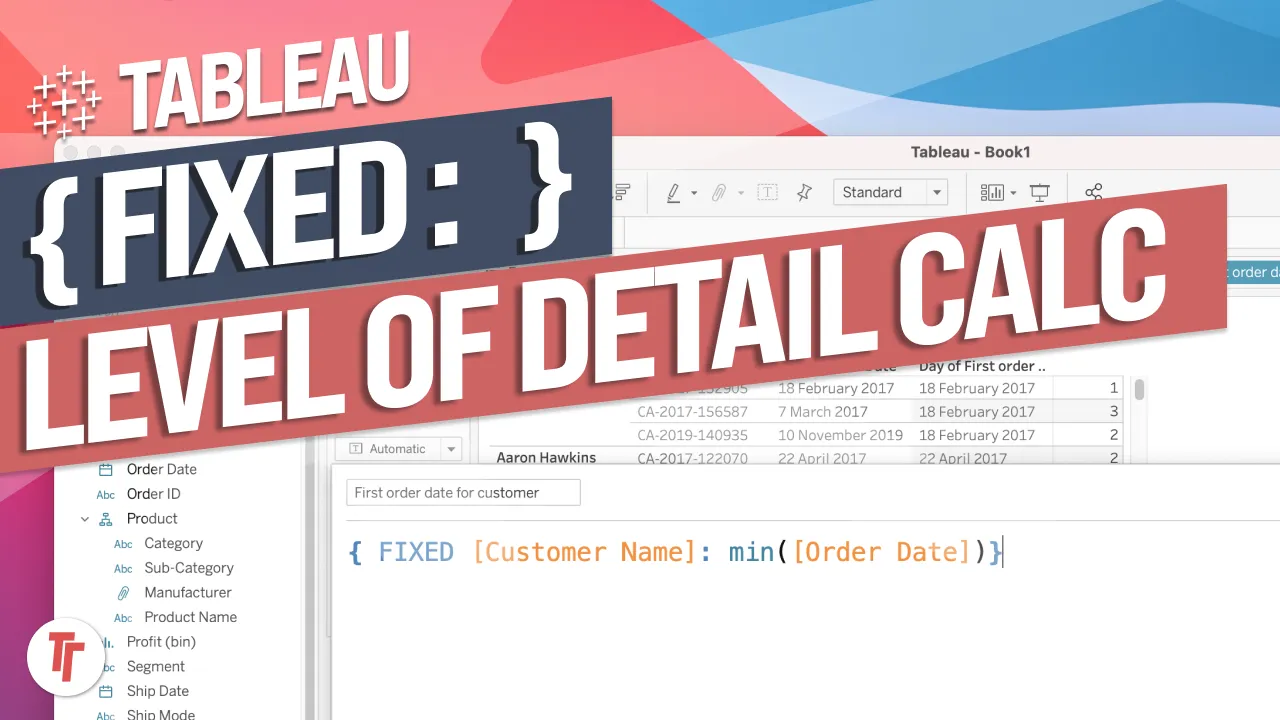
0:13on fixed level of detail calculation.
0:15Before we get stuck into the video it's
0:17also important to
0:18make sure you go to my channel and also
0:20check out the videos on granularity and
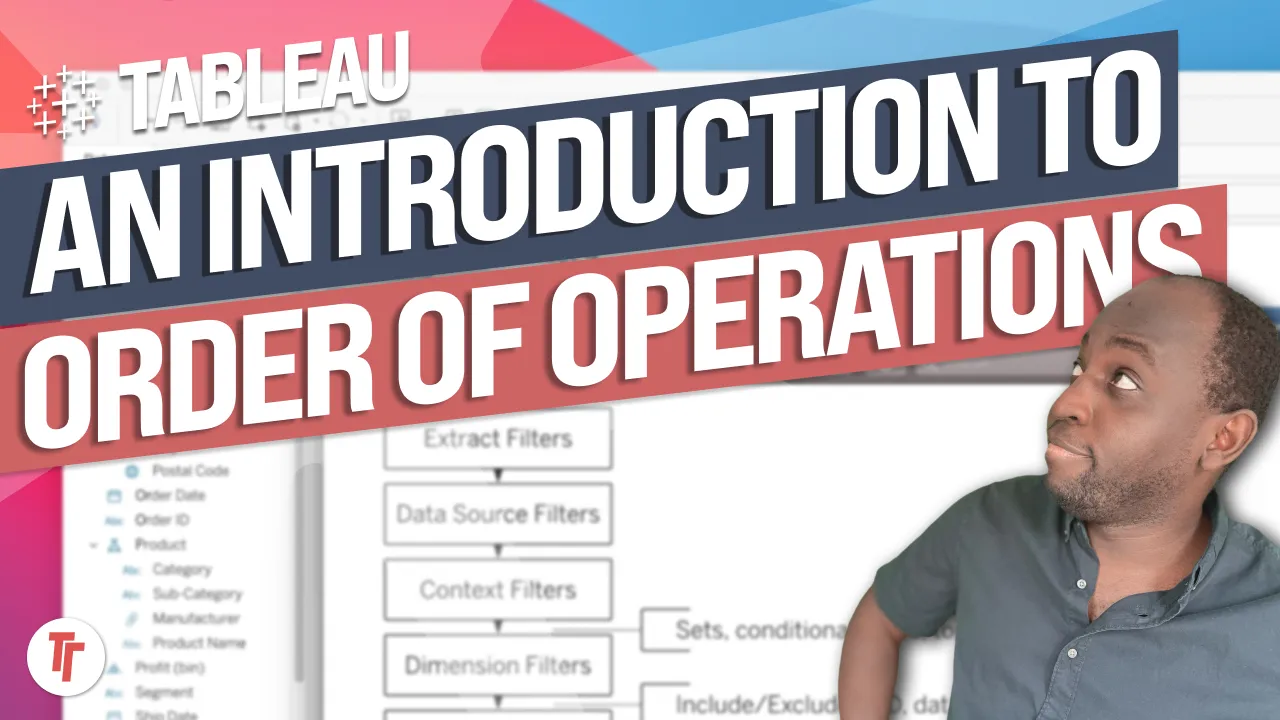
0:22also the order of
0:23operations. It doesn't have to be my
0:25content necessarily but just make sure you
0:26're familiar
0:27with these two concepts because we'll be
0:29talking about them in this particular video
0:31and in this
0:31video it makes a lot more difference in
0:34terms of your level of understanding if you
0:36don't know
0:37about those concepts. So check out those
0:39concepts before we get stuck in. Last but
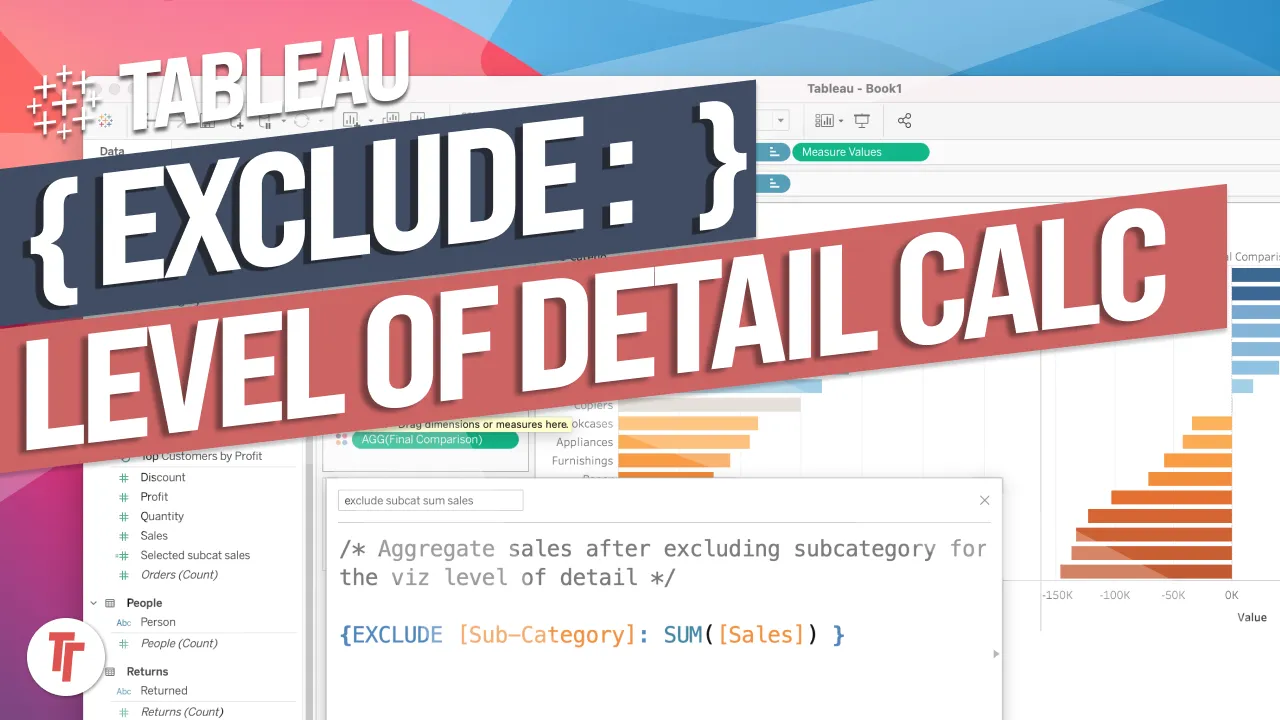
0:41not least if you
0:42enjoy the content that I make on this
0:44channel be sure to share it with other
0:45people, like,
0:46subscribe and hit the notification bell so
0:48you find out as soon as I launch new videos
0:50out on
0:50this channel. Okay that's enough let's get
0:52stuck in. Okay so for this one I'm actually
0:55going to
0:55just dive right into tableau and set up an
0:57example. I'm going to open up the super
0:59store sales, I'm
1:00going to open up the American version but
1:01you can open up whichever version comes on
1:03your machine.
1:04To do this I'm actually going to build a
1:06very simple view. I'm going to bring region
1:09onto rows
1:10then I'm going to bring sales onto where it
1:12says ABC. That uses a feature called show
1:15me which then
1:16builds us this really nice table. Now what
1:18I'm going to do is I'm going to set this to
1:21an average
1:21okay and then I'm going to ask you this
1:23question what average is this actually
1:25showing me. It says
1:27average sales and so you might argue that
1:29this is the average sales for each region
1:32but if I then
1:33challenge you a little bit more on what
1:36exactly is that average of it's a really
1:39important thing to
1:39have clear. Some people might say that this
1:42is the order IDs data set so you see
1:44everything here is
1:45about orders and therefore this is the
1:47average of each order. That's not actually
1:49correct. Okay the
1:51level of detail for this whole entire data
1:53set the granularity the grain the level of
1:56sort of row
1:57level information that we actually have in
1:59this data set is actually at the product
2:01level. So if
2:02I just show you here let's just go into
2:05this table and I just bring sort this by
2:08order ID and let's
2:09just find an order with multiple items. You
2:11can see here I've got this order here with
2:14two items.
2:14You'll see here that if I just go across
2:17same order ID but the product name is
2:19actually what's
2:20different about these individual rows. So
2:22this data set although it's about orders
2:25actually tells me
2:25more about the products in each order
2:27rather than just the orders themselves. So
2:30whenever I do any
2:30aggregation I have to bear that in mind
2:33because what this average is is actually
2:35just the average
2:36of all the individual products in our
2:39orders totaled up and essentially just
2:42calculated
2:42across the whole entire table. So
2:44essentially what you do here to get this
2:46215 I'll just show you on
2:48a new sheet is you drag the order ID onto
2:50rows. I'm going to bring the customer name
2:53as well just
2:54because you know a customer can have
2:56multiple orders and then what I'll do is I
2:58'll also bring
2:59sales here onto the table and then I'll
3:01also bring product name because this is the
3:03actual grain of
3:04our data and you can see each and every
3:07individual one of these is actually the
3:10level of detail of
3:11our data set and if I just go into my table
3:13you'll see that in the orders table I have
3:169994 rows
3:18and in here we actually have 9986 there's
3:21actually some duplicate records somewhere
3:23in this data I
3:24know that because I've worked with it a lot
3:26but if I just bring the count of orders
3:27here which just
3:28counts the rows in the orders table you'll
3:30see that it's just one for the number of
3:32rows here.
3:33So this is the actual grain of our data so
3:35if we take that count out and we just look
3:38at this and
3:39we look at the specific grouping that we're
3:41talking about so if we take central as a
3:43very simple
3:44example let me drag region in front of
3:47order id and let's just keep central as the
3:50only data set
3:51in our view and then we're going to bring
3:53the worksheet and then show the summary and
3:56then
3:56you'll see here in the summary view that
3:58the average is actually 216 this is just
4:01computing
4:02the average of all these values so this is
4:04in fact the average of each and every one
4:07of these
4:07product cells if that makes sense and it
4:10matches that it's rounding up and down in
4:12in our in our
4:13in our calculator but it's more or less
4:15exactly the same thing so that's basically
4:18what that
4:18average is showing and so when it comes to
4:20fixed level of details and include level of
4:23details and
4:24exclude level of details it's really
4:26important to be aware of the question at
4:28hand. Now the question
4:29I'd really like to answer is what is the
4:31average order size in each of these regions
4:34and so in
4:34order to do that I have to bring some
4:36additional context into this visualization
4:39that isn't
4:40currently in there but what I don't want to
4:42do is have to show that context that's sort
4:44of the
4:44value add with level of detail calculations
4:47you can compute the different level to what
4:50you're
4:50actually looking at remember in my previous
4:52video I talked about the viz level of
4:54detail and so the
4:54viz level of detail is controlled by
4:56anything on columns and rows and then
4:59pretty much most things
5:00on the marks pane apart from the tool tip
5:02the tool tip is the only thing that doesn't
5:05change the viz
5:06level of detail it uses this capability
5:08called the attribute to sort of get around
5:10that and so
5:11pretty much everything else controls the
5:13viz level of detail. Let's just clear that
5:16and let's start
5:16looking at our level of detail calculation
5:18so let's open up the calculation window and
5:21let's
5:22just type the question we're trying to
5:24answer what is the average order size in
5:28each region okay so
5:32let's just put that in there so it's really
5:34really clear and you can have that in
5:35context and so
5:36let's go to a new line and I'm just going
5:38to type the calculation first then I'm
5:40going to show you
5:40how it solves the problem in order to write
5:43this calculation I'll just type an open
5:45curly brackets
5:46here and you can see it's very very simple
5:49I press the function key for emoji there we
5:51don't need
5:52that so if I just make this larger the
5:54first thing I need to do is type include
5:57okay and what the
5:58include level of detail does is it
6:00essentially brings a dimension into the
6:03visualization so
6:04unlike fix which is working independent of
6:07the visualization include and exclude work
6:10in
6:10conjunction with whatever is in our view so
6:13at the moment we have regions therefore if
6:15I then say
6:16order id what's going to happen is it's
6:19going to add order id into the view which
6:22means the level
6:23of detail for the view and this calculation
6:25will actually be region and a combination
6:28of order id
6:29not just region or not just order id okay
6:32and so I'll show you an example of that in
6:35a second so
6:35let's just finish typing this out and what
6:38we want to do is sum up all the cells and
6:40then what we're
6:41going to do after doing this is calculate
6:43the average of all these values so I'm
6:45always typing
6:46cells incorrectly here I should just use
6:48autocomplete it's a sort of a thing of
6:49habit
6:50and you can see that this calculation is
6:52now valid I'll just make sure I type this
6:53correctly
6:54with a capital I and now we have our
6:56include calculation so what this is doing
7:00is it's
7:00basically looking at the viz level of
7:02detail it's showing me that you know you're
7:04only working at
7:05the region so go ahead and add order id for
7:08that level of detail and then go ahead and
7:10calculate
7:11the total sum of cells okay so I'm just
7:13going to call this order size because that
7:16's essentially
7:17what it's calculating this is calculating
7:20the total order size for this particular
7:22setup so
7:23I'm going to hit apply and when I do that
7:25it shoots off over here to this left hand
7:28side pane
7:29and so now that I've done that I can bring
7:31that into the view and we can start to look
7:33at it and
7:34so you see you get the same total as we had
7:36before sort of nothing controversial there
7:38but if I then
7:39change this to the average order size you
7:42can see that we get a very different number
7:45426.6 for each
7:47and every one of these and so just to
7:49validate that let's go ahead and look at
7:51what the value is
7:52for central so for central we're seeing
7:55here that the value is 426.6 so let's go
7:58over ahead to my
7:59other visualization let's remove product
8:02name over here and you can see here that it
8:05's 427 so it's
8:06again doing some rounding up this is 426.6
8:10so it rounds up to 427 which is essentially
8:13what this is
8:14showing here which is kind of sort of good
8:16to know you can sort of add other you know
8:19aggregates to
8:20this summary window and it's just a you
8:22know nice thing to have it's like a
8:24calculator so you can
8:25now see that the number is correct and this
8:27is what is actually being calculated here
8:29so now
8:30that we've done this some of you might be
8:32saying well hey tim I could do this with
8:34fix couldn't I
8:35and you can so just bear with me now as I
8:38take a small tangent let's go and create a
8:41fixed
8:41calculation here and I'm going to do this
8:43exactly the same thing fix to the order id
8:46go and show me
8:47the sum of sales let's type in sales
8:51correctly here and just close that off and
8:54then do a close
8:55brackets at the end so basically what this
8:58is doing is remember the fixed level of
9:01detail
9:01doesn't work with anything in the
9:03visualization the calculation is
9:05independent and so unlike the
9:07include function it's going to work very
9:09differently and I'll show you an example of
9:11this in just a
9:11second so this is going to go ahead and
9:14aggregate all the summer cells for each
9:16order id okay so
9:17I'm just going to say this is the fixed
9:20version of the order size okay and so we're
9:24going to hit apply
9:25and click okay and then we're just going to
9:28drag that into the view and again it gets
9:30the same
9:31total as before and then we go in here and
9:33we set the average and there we go we get
9:35exactly the
9:36same answer 426.6 484.5 and so you're
9:40probably wondering well hey Tim so why did
9:43you go through
9:44all this effort to show me the include
9:46function when it does exactly the same
9:48thing as fixed
9:48well it actually depends on the question
9:51you're asking you see there's a subtle
9:53difference between
9:54these two things let me change this to
9:56include subcategory and then I'll try and
9:58explain to you
9:59why they're different let me just duplicate
10:01this sheet like this so we keep the other
10:03one there
10:04and then I'm going to go ahead and grab sub
10:06category and replace region with subcategory
10:08and then you'll see now these start doing
10:11completely different things they're not
10:13showing
10:13the same thing and if you can guess why
10:15this is before I explain it to you then let
10:18me know in
10:18the comments below and if you can then you
10:20are a pro user of Tableau you're totally in
10:23tune with
10:23everything that you need to know with gran
10:25ularity and you know level of detail
10:27calculations
10:29essentially what's going on here is that
10:32our orders are actually based on the
10:34product level
10:35and so when a customer makes an order let
10:37me just show you the table when a customer
10:39makes an order
10:40we capture a few bits of information okay
10:43and if I just sort of narrow down to these
10:46two
10:46that's actually not not a good example let
10:48me find another example here we go this is
10:51a big order here
10:52right here so this is a good example
10:53because it spans quite a few rows so there
10:56we have an order
10:57and you can see this customer is called uh
11:00or is it bracina hoffman okay and they are
11:04in
11:04los angeles in the united states and they
11:06've bought items across multiple subc
11:08ategories that's a really
11:10important thing to be aware of okay
11:12multiple categories and subcategories if I
11:14scroll across
11:15you'll see all the different products which
11:17makes total sense and then you'll see the
11:19region is west
11:20okay so the region is the same in this
11:22particular context the segment is the same
11:25as well and then
11:26you have the subcategories which are
11:28different and so this is actually why these
11:30are working
11:31differently when I switch from region to
11:33subcategory because at the region level
11:36the same customer is going to be ordering
11:38from the same region the region is just
11:40capturing the
11:41region that that customer lives in see this
11:44regional data this location data is
11:46actually
11:46belonging to the customer okay whereas my
11:50subcategory is different and so my fixed l
11:54od
11:54is actually going to be doing double
11:56counting in this view because what it's
11:58doing is independent
11:59of the visualization it's going out and
12:02totaling all the orders and it's basically
12:05it's going out
12:06and totaling all the products in my order
12:08and then apportioning them to the order id
12:10whereas my
12:11include function is doing that not just at
12:14the order level but at the order and sub
12:17category level
12:18so the order and subcategory level this
12:20number is actually correct what it's
12:22basically doing is it's
12:23almost creating a combined field between
12:26subcategory and order id then computing the
12:28average based on that so you can actually
12:31split an order in a slightly level of
12:33different level
12:34of detail compared to our fix which isn't
12:36doing that and that's why you can see here
12:39in accessories
12:40we're getting a rather high value even
12:42higher than what we had before for one
12:44particular region
12:45because actually what it's doing is it's
12:47just looking at the total order so even if
12:49they're
12:49from another category and then it's
12:52calculating the average okay and so an
12:54order can have multiple
12:55subcategories and that's why that's
12:58basically so high so in this case to get
13:00the right number
13:01and this time let's say we've changed the
13:03question to ask what's the average order
13:05size within each
13:06subcategory what we have to do is we have
13:08to basically split up our order and
13:10basically treat
13:11an order as being an order and subcategory
13:14combination because you don't want to sort
13:16of be
13:16merging orders from different subcategories
13:19and so we kind of create a new sort of let
13:20's think of it
13:21as a combined field essentially then we're
13:23going out and calculating this value and
13:26actually this
13:26this middle value is the correct one which
13:28is why we need to use the include function
13:30in the first
13:31place this outer one is actually incorrect
13:33but it ends up being correct when we look
13:35at it from
13:36a regional perspective if i just go back to
13:38this one because in this one the order does
13:41actually
13:41belong to the region and so when we do a
13:43fixed level of detail here it will give us
13:45the same as
13:46the include function okay so that's a
13:48really sort of important thing to be aware
13:51of the include
13:51function and the fixed uh lod works
13:53slightly differently and they although
13:55sometimes they
13:56can give you the same answer as soon as you
13:58change that question as soon as you just
14:00start dragging
14:01and dropping things into the view that
14:02question can very quickly change and so you
14:04need to keep
14:05asking that question about whether that's
14:07the correct context for your calculation
14:09okay so just
14:10to summarize the include level of detail we
14:13'll take our aggregation so let's bring this
14:17up
14:17let's bring up the order size function i'll
14:19open this up it'll take our visualization
14:24and it will
14:24understand what's in the visualization
14:26level of detail in this case it's sub
14:28category previously
14:29it was region okay and then it will also
14:31bring in order id into that level of detail
14:34so now think of
14:35subcategory and order id as two things and
14:38then it will use that to figure out the
14:40total cells
14:41at that level that new level that it's
14:43basically added then it will go and do the
14:45average um in
14:47this case we've done the average inside of
14:49this this sort of calculation window but we
14:52could
14:52actually end up doing the average here and
14:54then you can do the aggregation in the
14:56calculation but
14:56i'm just going to leave it like this
14:58because the order size is something that we
15:00might want to do
15:00flexibly in lots of different situations
15:03okay and so that is basically summarizing
15:05what's going on
15:06here in fact if i actually change this
15:08particular question what is the average
15:10order size in each
15:11subcategory because now that's what's
15:13correct and then you can see that um sort
15:17of working there
15:20okay so we've had a look at a very basic
15:22example the include function i can see some
15:25people still
15:26confused you know like when would i ever
15:28use this well this is a very good example
15:29of when you might
15:30use it but let's see what you might do if
15:32you want to use a more complex question
15:35maybe another
15:35example that you can also use let's get
15:37stuck into that okay so let me close this
15:40window and we're
15:41going to try and ask a new question here so
15:43the question i want to ask is which city
15:45has
15:46manufacturers that create the biggest cells
15:48okay it's a slightly more complex question
15:50because
15:51what we have to do is find out essentially
15:53the larger cells for each manufacturer and
15:57then try
15:57and you know do the average across each of
16:00these cities essentially okay um so let's
16:02go ahead and
16:03try and do that essentially so the first
16:05thing i'll do is open up a calculation and
16:08we're going
16:08to do a level of detail calculation of
16:10course we're doing the include one so let's
16:13go ahead
16:13open up the brackets i'll make this larger
16:16so you can see and i'll do include and in
16:19this case we
16:20need to do the average for the manufacturer
16:23first so let's go ahead and include the
16:26manufacturer
16:27okay and let's go do that then we need to
16:29go and find the largest cell for each
16:31manufacturer
16:32okay so let's just go do that and let's say
16:35we want the largest cell okay and just
16:40close that
16:40as well and then we're going to close out
16:42that bracket okay so that's sort of the
16:45first the first
16:46part and i never know how to sort of name
16:48these things but we'll just say um we're
16:50basically
16:51finding the largest cell for the
16:54manufacturer okay this should actually be a
16:58comment comment
16:59i don't know why i'm putting it in the name
17:01let's go ahead and put it in a comment here
17:02so it's
17:03easier to see okay uh finding the largest
17:05cell for the manufacturer okay and this is
17:08going to do it
17:09in context of the visualization okay so in
17:12context of the viz because it will do it
17:14for the largest
17:15manufacturer and whatever else we have in
17:17the viz so in context of the viz is what i
17:19'm going to put
17:20here in context of the viz let's just make
17:23sure that's clear okay so we've done the
17:26first uh sort
17:28of part of our question and i'm just going
17:31to say manufacturer manufacturer uh i can't
17:36even spell
17:37here i'm just going to call this um
17:41manufacturer manufacturer max cells include
17:47so we know what
17:48we're creating essentially okay then we're
17:50going to hit apply and now you'll see that
17:52that
17:53calculation has shut off over here and is
17:55now available for us to use okay the next
17:58thing i'm
17:58going to do is i'm going to start building
18:00my view and then we're basically going to
18:01try and answer
18:02this question properly okay so let's just
18:04hit uh control a just to clear out the
18:06annotations and
18:07hit close and let's just now start bringing
18:10in the question we're trying to answer so
18:12here's the
18:12cities okay you can see here are all the
18:14cities and then the last thing we're going
18:17to do is we're
18:17going to bring in that uh new calculation
18:20we've just created and which is just here
18:22manufacturer
18:23max cells include okay i'm going to bring
18:25that into the view and of course this first
18:27thing it's
18:28going to do is total it the thing we
18:30actually want to do is do an average okay
18:32so it's going to go
18:33and find on average the biggest cells for
18:35each manufacturer within the cities okay
18:38and then we're
18:38going to bring this actually we're going to
18:41just sort this from largest to smallest and
18:43there we go
18:44so it's jamestown is essentially the city
18:47in which the manufacturers on average
18:50generate the biggest
18:51cells okay so it's a slightly more complex
18:53question to ask and it involves a little
18:56bit more
18:56sort of thinking if that makes sense it
18:58involves us to sort of make sure we're
19:00asking the right
19:01question if i just go ahead here and open
19:03this up and you can sort of see the context
19:06of the four
19:06questions so what we had to go and do is go
19:09and find the max cells for each
19:10manufacturer and
19:11because this is doing in context of the viz
19:14it's like saying that you're doing a
19:16manufacturer and
19:17city combination okay then it's going to
19:20find the max cells so remember our data set
19:22is working at
19:23the product level of detail so it's gone
19:25off and found the max cells on a product
19:28level for each
19:29of those combinations okay and then it's
19:31basically got those ready to go it's sort
19:33of loaded them up
19:34and then what we're asking it to do is to
19:36take an average of that value and that will
19:39give us
19:40the value of food to these cities if we
19:42wanted to we could go into each one of
19:44these and just open
19:45this up and we get a summary view which
19:47tells us what's going on but also if we
19:49click on this
19:50we'll actually get this this view and so
19:53you can see this is a really good example
19:55because you can
19:56see that it's got the city james town it's
19:58got logitech and apple okay and this is the
20:00max cell
20:01for each of these manufacturers okay so
20:04this is the largest one and then what you
20:06can see here is
20:07that it's basically taking an average of
20:09these two and it's come back with 2354 so
20:12maybe that
20:12wasn't a bad question to ask because we
20:15just don't have that level of detail and
20:17sort of as much
20:19information in each row to really be asking
20:21this question in a meaningful way because
20:23the average
20:23is sort of taking two ends of our extreme
20:25and just drawing a line in the middle but
20:27hopefully you can
20:28see this question is working a little bit
20:30more realistically okay if i actually go
20:32ahead and do
20:33this let me just um go and bring in the
20:36sales value into the table as well you can
20:39actually
20:40see the total sales and if i go back in
20:42here and click the detail view for this one
20:44you'll see that
20:45we actually get three tables here at the
20:47bottom so we get the one we got before
20:49which shows us
20:50these two values and if we look at logitech
20:53and james town and we go to orders we'll
20:56see that it's
20:57the only value in here so logitech here the
21:00max is 159 and the max is 454 there so that
21:04is a pretty
21:05interesting sort of set of data if i just
21:07bring in the row count here well let's try
21:09and find
21:09something with lots and lots of detail j
21:12ames that only had sort of two values there
21:14if i go to
21:15lafayette i think is the correct way to say
21:17this let's go in here and let's go have a
21:20look at this
21:20more granular data okay so here we have the
21:23max values for each and every one of these
21:25manufacturers okay and essentially what's
21:28going on is it's basically gone and
21:30calculated the average
21:32across all of these manufacturers okay and
21:34that's coming back at 1006 that's not
21:37actually correct
21:38let's go back to the right one here 25,036
21:42is the total but the average is actually 12
21:4504 across all
21:46these values and so the way it's doing that
21:48if we go down to aviary for example and go
21:51into the
21:51orders you'll see the orders actually
21:53calculates across 31 rows we have all the
21:56information here
21:57and we can go across and just start looking
21:59at this in a little bit more detail so you
22:00can see
22:01the sales here and work at a slightly
22:02different level of detail and you can start
22:05to see how this
22:05is working okay so it's really nice that
22:07the summary actually gives you this so when
22:09you go
22:10into the tabular view tabular actually
22:12shows you what it's doing and how it's
22:14computing it
22:14and now this is basically doing what we
22:16asked it to do we are finding out the
22:18average max sales of
22:20all our manufacturers within each city and
22:22then saying which city on average creates
22:25the biggest
22:25ones of those opportunities okay now it's
22:28probably a good idea to have the count of
22:30rows here so you
22:31can just sort of get some context as to
22:33what's driving that average so here you can
22:35see new york
22:36city has 915 orders in this particular case
22:40sorry 915 rows in this particular case and
22:44if we actually
22:44did a count of orders the way we can do
22:46that is go to count of order id so just put
22:49that in there
22:50and make sure we do a count of distinctive
22:53order id then put that in our table so you
22:55can see here
22:56new york has 450 orders from for us to work
22:59with so when we go into that particular one
23:02you can see
23:02here that this is going to be working off a
23:05much bigger pool of manufacturers because a
23:07lot of
23:08a lot of manufacturers are selling products
23:11in this particular city or the customers
23:13are in this
23:14particular city and therefore these
23:16manufacturers are serving those customers
23:18in new york and then
23:18these are the max sales for each of those
23:21and then it's going to do the average okay
23:23so slightly
23:24obtrusive question but you can see how much
23:27we got into the weeds of just really
23:28understanding
23:29what the level of detail calculation is
23:32doing and more importantly what our data
23:34set is about
23:35really understanding the context of the
23:37question and really understanding what we
23:40're trying to ask
23:41to make sure we're getting this correct
23:42okay now before i close out the video i'm
23:44going to call out
23:45the resources that i mentioned earlier on
23:48go and check out this page on level of
23:50detail expressions
23:51by tableau it's really really good it goes
23:53into the detail of what they do how they do
23:55that and
23:55how to make sure you're doing them
23:57correctly this article here by bethany
23:59lions from tableau who's
24:00a senior product manager she talks about
24:02the 15 most used lod expressions and you'll
24:05find a few
24:06in there that use the include function and
24:08then lastly an overview of the lods and
24:11this one
24:11actually covers some things to be aware of
24:13so not only does it sort of tell you how
24:14how they work
24:15exactly but it also gives you some
24:17exceptions to be aware of and the last
24:19thing is the tableau's
24:20order of operations just understanding this
24:22is really really important to make sure
24:24that you know
24:24what's actually going on with your
24:26calculations i didn't touch too much in
24:28order of operations in
24:29the include function just because i think
24:31it was easier to see what was going on here
24:33and but if
24:34you ever wanted to do that actually there's
24:36another white paper which i'll put a link
24:37to in the
24:38description which actually shows a visual
24:40representation of how the calculations are
24:42working
24:42if i just sort of remind you here the
24:44include function happens after dimensional
24:48filters okay
24:49so they happen at a slightly different
24:51place in our data set and which is why it's
24:53really
24:54important to sort of get that context okay
24:55so that's it for this video it's been an
24:57introduction
24:58into the include function and the lods
25:00hopefully you start to understand why you
25:02might use them or
25:03what you might want to use them for and
25:04yeah i'll catch you in the next video where
25:06i'll be covering
25:07the exclude function which is actually very
25:09similar but just works in the opposite
25:11direction
25:12this one you bring data in you add
25:13something to the visualization level of
25:16detail with the
25:17absolutely take something out so it's
25:19almost the same but just works in reverse
25:21order okay catch
25:22you in the next video thanks for watching
25:24subscribe like and share the video with
25:26anyone you think you
25:27might enjoy it and i'll see you in the next
25:28video
 Tableau | Data visualisation | Analytics