Tableau | Tool strategy
 How to use Nested Project Enhancements in Tableau Server & Online 2020.1
Tableau 2020.1 lets you lock a parent project's permissions while still letting nested projects stay customisable.
- The new content permissions setting in 2020.1 offers three behaviours: customisable, locked with nesting applied, and locked without nesting
- Leaving a project customisable means any content, including nested projects, can have its own permissions set
- Setting a project to locked with the checkbox ticked pushes permissions down to all nested projects, mirroring pre-2020 behaviour
- Unticking the lock option locks the root directory only, allowing nested projects to remain customisable for more flexible hierarchies
Tableau 2020.1 adds a content permissions setting on projects that lets you control whether nested projects inherit and lock to their parent's permissions, or stay independently customisable, giving you finer control over project hierarchies.
Demonstrated in Tableau Online (same interface as Tableau Server), using a project containing nested sub-projects of sample visualisations. The point is to show how permission inheritance works between a parent project and the projects nested inside it.
- Find the content permissions setting 0:21
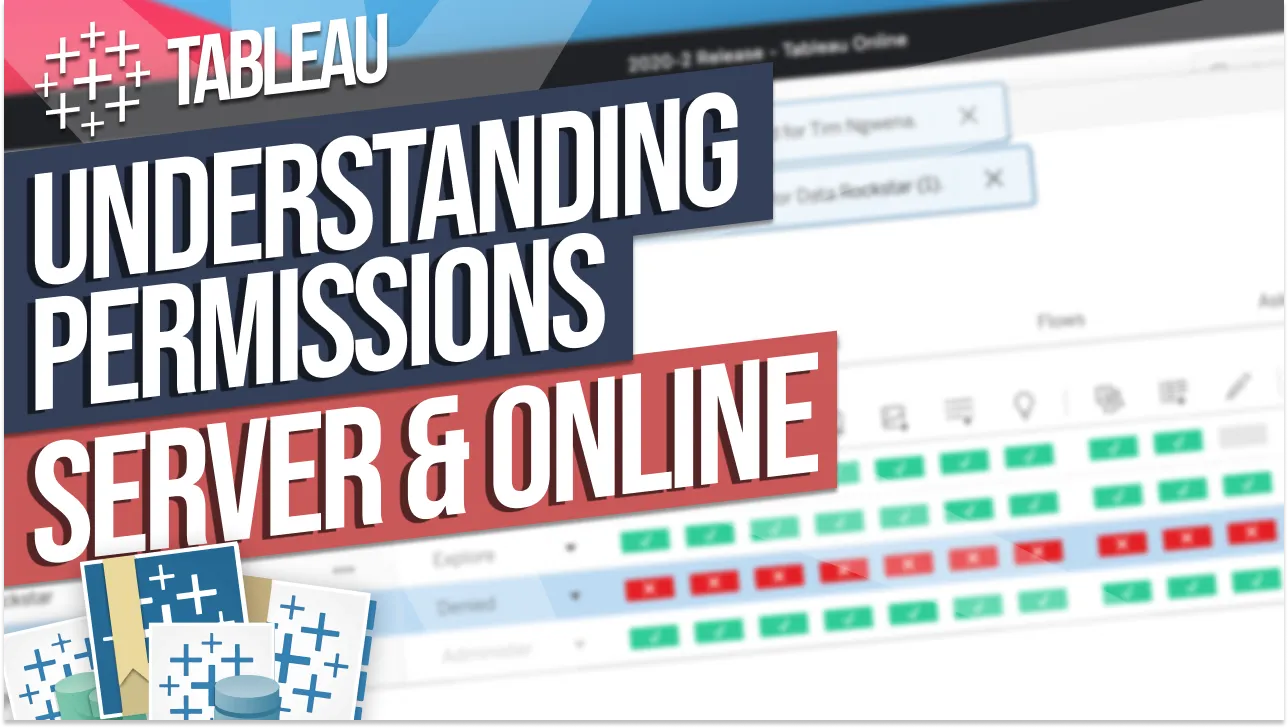
Open a project's three-dot menu and go to Permissions. At the top you'll see a new content permissions control introduced in this version, which governs how this project's permissions relate to anything nested inside it.
- Customisable: each nested project sets its own rules 0:42
With the setting left as customisable, any content added to the project's root, including nested projects, can have its own independent permissions. This is the default and most flexible option.
- Locked with nesting ticked: permissions cascade down 1:43
Switching to locked and leaving the checkbox ticked pushes the parent's permissions onto all nested projects, so they can't be changed individually. This matches how Tableau behaved before 2020.1, and if you want to unlock a nested project's permissions you must go back and change the parent's setting first.
- Locked without nesting: lock the root, free the nested projects 2:40
Unticking the nesting option while locked locks only the root directory's permissions but leaves nested projects customisable, so each nested project still gets full independent permission controls.
- Keep track of which level controls what 3:21
Because permissions can be locked at one level and free at another, you need to consciously track which setting applies where; this added flexibility is useful for building project hierarchies that better match your real permissions model.
- To unlock permissions on a nested project that's locked to its parent, you have to change the setting on the parent project itself, not the nested one.
- This mirrors pre-2020 Tableau behaviour when the nesting checkbox is ticked, so existing locked hierarchies won't change unless you touch the setting.
Reach for this when you're designing a project hierarchy where some folders need strict, inherited permissions but sub-projects underneath need their own independent access rules.
How this Rollup was made provenance & method
A Rollup is drafted by AI from the video's transcript, then reviewed and edited by Tim. Everything used to produce this one is listed below (the model, the exact prompt, and the source video), so the process is transparent and reproducible.
- Transcription
- On-device: NVIDIA Parakeet v3 for recent videos, OpenAI Whisper large-v3 for earlier ones. The transcript never leaves the machine or gets published.
- Drafting
- Claude Sonnet 5 in the cloud, from that transcript.
- Prompt
- The exact Rollup prompt (v2) , the full system prompt, unedited.
- Mode
- Walkthrough: a timestamped breakdown in video order, for a demo or how-to. Written before modes existed, when every Rollup was a walkthrough.
- Source video
- Watch on YouTube
- Drafted
- 5 July 2026 at 09:38
- Reviewed & edited
- 5 July 2026 at 09:41 · by Tim Ngwena
Model + prompt + video is everything you'd need to recreate a Rollup like this yourself. The one thing we don't share is the transcript.
Rights. The video and its transcript are the property of TN Media Ltd. Unauthorised use or download is prohibited. © TN Media Ltd.