Tableau | Data visualisation | Analytics
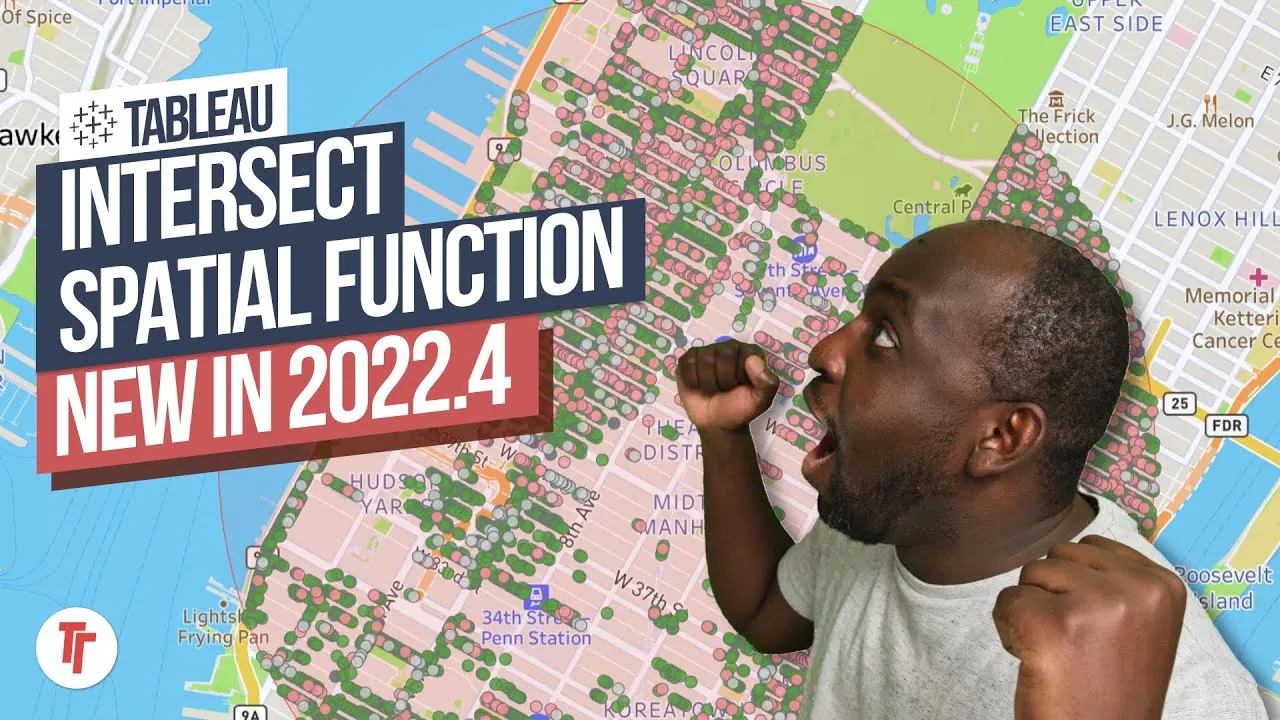
 How to use Buffer Calculations In Tableau 2020.1
Tableau 2020.1's buffer function lets you draw a radius around any point and instantly spot where coverage areas overlap.
- The buffer function in Tableau 2020.1 draws a radius around a spatial point so you can visualise coverage areas on a map
- Latitude and longitude alone aren't a spatial data type, so you first need MAKEPOINT (added in 2019) to create a true spatial point
- BUFFER takes three arguments: a geometry (point, line or polygon), a number for the radius, and the units such as kilometres
- Assigning geographic roles to your latitude and longitude fields before building lets you work with the data straight away
- Adding company name to colour and adjusting opacity makes overlapping radiuses easy to spot for catchment analysis
Tableau 2020.1's BUFFER function lets you draw a radius around any spatial point directly in a viz, so you can see where coverage or catchment areas overlap without needing external GIS tools.
Tim uses mock car dealership data with a name, address, and latitude/longitude for each location, aiming to visualise a coverage radius around each dealership on a map.
- Assign geographic roles up front 0:40
Give your latitude and longitude fields their proper geographic roles as soon as you connect to the data, so Tableau treats them correctly from the start rather than having to fix it later.
- Create a spatial point with MAKEPOINT 1:21
Latitude and longitude alone only describe a location, they aren't a true spatial data type, so before BUFFER will work you must first build a point using MAKEPOINT (added in 2019), feeding it the latitude and longitude fields.
- Write the BUFFER calculation 2:01
Create a new calculated field and type BUFFER — Tableau prompts you for each argument in turn: a geometry (your MAKEPOINT field, though it could also be a line or polygon), a number for the radius, and a unit such as kilometres.
- Visualise the radius on the map 3:00
Double-clicking the buffer field plots a circle representing that radius around each point, giving you an instant visual of coverage area rather than just a single marker.
- Spot overlaps with colour and opacity 3:20
As a follow-on tip, drag a categorical field like company name onto colour and adjust the mark opacity — this makes it much easier to see where multiple radiuses overlap, which is the real payoff for catchment-style analysis.
- BUFFER needs a genuine spatial object as its geometry argument, not raw lat/long fields — MAKEPOINT is a prerequisite step, not optional.
- You can use units other than kilometres for the radius if that suits your data better.
Reach for this when you need to judge catchment or service-area overlap from point data — for example comparing store, branch or dealership coverage — without leaving Tableau for dedicated GIS software.
How this Rollup was made provenance & method
A Rollup is drafted by AI from the video's transcript, then reviewed and edited by Tim. Everything used to produce this one is listed below (the model, the exact prompt, and the source video), so the process is transparent and reproducible.
- Transcription
- On-device: NVIDIA Parakeet v3 for recent videos, OpenAI Whisper large-v3 for earlier ones. The transcript never leaves the machine or gets published.
- Drafting
- Claude Sonnet 5 in the cloud, from that transcript.
- Prompt
- The exact Rollup prompt (v2) , the full system prompt, unedited.
- Mode
- Walkthrough: a timestamped breakdown in video order, for a demo or how-to. Written before modes existed, when every Rollup was a walkthrough.
- Source video
- Watch on YouTube
- Drafted
- 5 July 2026 at 09:38
- Reviewed & edited
- 5 July 2026 at 09:41 · by Tim Ngwena
Model + prompt + video is everything you'd need to recreate a Rollup like this yourself. The one thing we don't share is the transcript.
Rights. The video and its transcript are the property of TN Media Ltd. Unauthorised use or download is prohibited. © TN Media Ltd.